> ## Documentation Index
> Fetch the complete documentation index at: https://docs.covianalytics.com/llms.txt
> Use this file to discover all available pages before exploring further.
# Configuration
> Customise CORE's lists, categories, and notification settings to match your organisation's requirements.
## Overview
The Configuration page is where administrators tailor CORE to your organisation's specific terminology, categories, and workflows. Found under **Settings > Config Page**, it controls the dropdown lists, scoring scales, and notification rules used throughout the platform. Changes made here are reflected immediately across all relevant modules.
## How to use it
### Module tabs
The page is divided into tabs, each corresponding to a module or feature area within CORE:
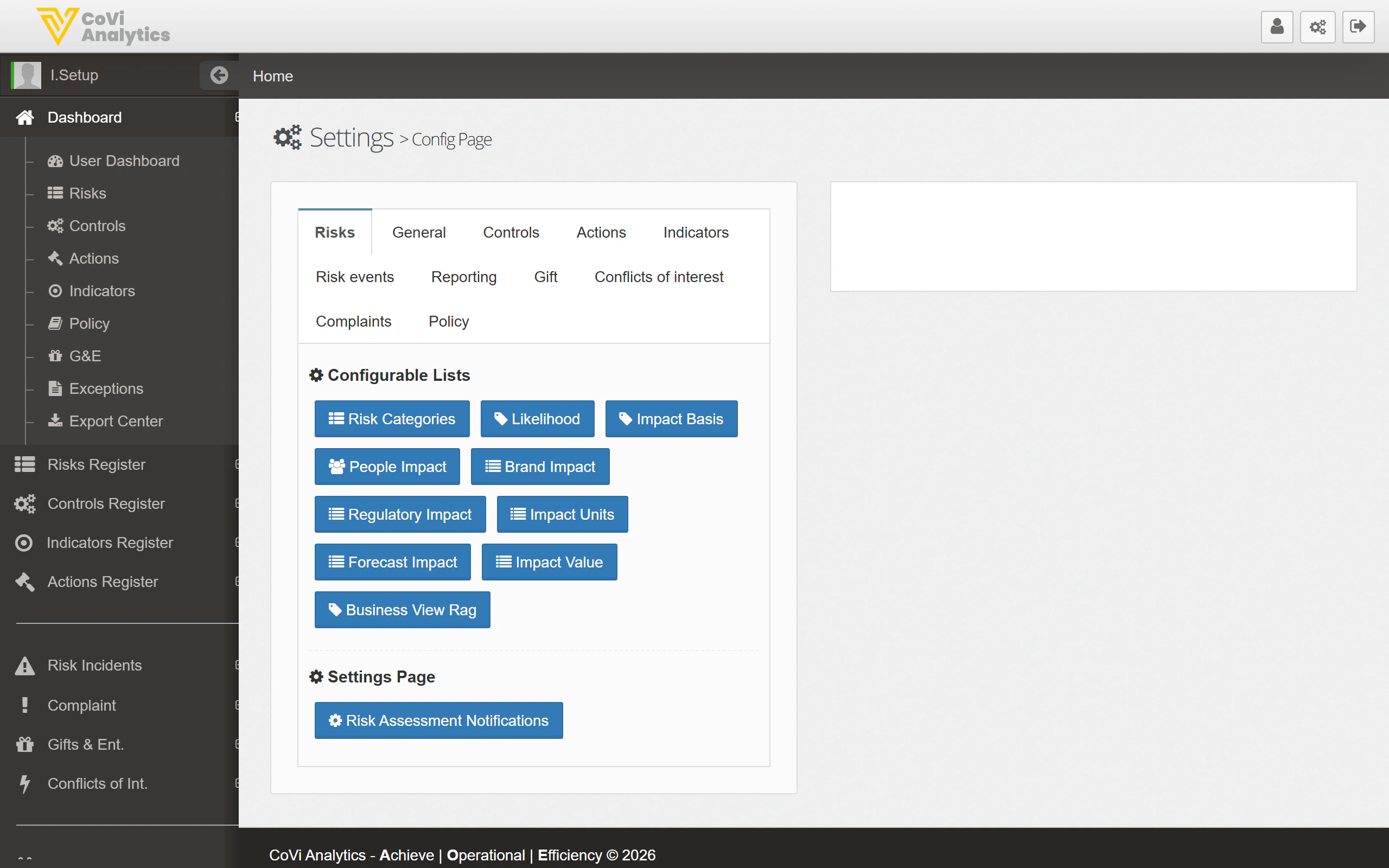 * **Risks** — Risk categories, likelihood scales, impact bases, and scoring definitions.
* **General** — Organisation-wide settings shared across modules.
* **Controls** — Control types, effectiveness ratings, and testing schedules.
* **Actions** — Action priorities, statuses, and completion criteria.
* **Indicators** — Key risk indicator thresholds and measurement units.
* **Risk Events** — Risk event categories and severity classifications.
* **Reporting** — Report types, sub-types, and classification taxonomies.
* **Gift** — Gift and hospitality categories and thresholds.
* **Conflicts of Interest** — Conflict sources, types, and response options.
* **Complaints** — Complaint categories and resolution types.
* **Policy** — Policy categories and review cycle definitions.
### Configurable Lists
Within each tab, you will see a set of blue buttons representing the configurable lists for that module. For example, under the **Risks** tab you will find:
* **Risk Categories** — The categories available when classifying a risk (e.g. Operational, Financial, Strategic).
* **Likelihood** — The likelihood scale used in risk assessments.
* **Impact Basis** — The basis on which impact is measured.
* **People Impact / Brand Impact / Regulatory Impact** — Separate impact dimensions for multi-criteria scoring.
* **Impact Units** — The units of measurement for quantitative impact values.
* **Forecast Impact** — Settings for forward-looking impact estimates.
* **Impact Value** — Predefined impact value ranges.
* **Business View RAG** — Red/Amber/Green thresholds for business-level risk views.
Click any blue button to open the list editor, where you can add, rename, reorder, or remove items.
### Settings Page
Below the configurable lists, each tab may include a **Settings Page** section. For example, the Risks tab includes **Risk Assessment Notifications**, which controls whether and when users are notified about risk assessment deadlines, overdue reviews, or score changes.
Adjust these settings to match your organisation's communication preferences and escalation procedures.
## Tips & Tricks
Before making changes to a configurable list, check whether the values are already in use. Renaming or removing a list item may affect existing records that reference it.
Changes to configuration take effect immediately and apply to all users. Coordinate with your team before modifying scoring scales or category lists, especially during active assessment periods.
If you add a new item to a list (e.g. a new risk category), it will appear in the relevant dropdowns across CORE straight away. There is no need to restart or refresh — users will see the new option on their next page load.
For managing who can access configuration settings, see [User Management](/admin/user-management). For how these settings affect specific modules, refer to the relevant log pages: [Risk Incidents](/incidents/log), [Complaints](/complaints/log), [Conflicts of Interest](/conflicts/log), and [Reporting](/reporting/log).
* **Risks** — Risk categories, likelihood scales, impact bases, and scoring definitions.
* **General** — Organisation-wide settings shared across modules.
* **Controls** — Control types, effectiveness ratings, and testing schedules.
* **Actions** — Action priorities, statuses, and completion criteria.
* **Indicators** — Key risk indicator thresholds and measurement units.
* **Risk Events** — Risk event categories and severity classifications.
* **Reporting** — Report types, sub-types, and classification taxonomies.
* **Gift** — Gift and hospitality categories and thresholds.
* **Conflicts of Interest** — Conflict sources, types, and response options.
* **Complaints** — Complaint categories and resolution types.
* **Policy** — Policy categories and review cycle definitions.
### Configurable Lists
Within each tab, you will see a set of blue buttons representing the configurable lists for that module. For example, under the **Risks** tab you will find:
* **Risk Categories** — The categories available when classifying a risk (e.g. Operational, Financial, Strategic).
* **Likelihood** — The likelihood scale used in risk assessments.
* **Impact Basis** — The basis on which impact is measured.
* **People Impact / Brand Impact / Regulatory Impact** — Separate impact dimensions for multi-criteria scoring.
* **Impact Units** — The units of measurement for quantitative impact values.
* **Forecast Impact** — Settings for forward-looking impact estimates.
* **Impact Value** — Predefined impact value ranges.
* **Business View RAG** — Red/Amber/Green thresholds for business-level risk views.
Click any blue button to open the list editor, where you can add, rename, reorder, or remove items.
### Settings Page
Below the configurable lists, each tab may include a **Settings Page** section. For example, the Risks tab includes **Risk Assessment Notifications**, which controls whether and when users are notified about risk assessment deadlines, overdue reviews, or score changes.
Adjust these settings to match your organisation's communication preferences and escalation procedures.
## Tips & Tricks
Before making changes to a configurable list, check whether the values are already in use. Renaming or removing a list item may affect existing records that reference it.
Changes to configuration take effect immediately and apply to all users. Coordinate with your team before modifying scoring scales or category lists, especially during active assessment periods.
If you add a new item to a list (e.g. a new risk category), it will appear in the relevant dropdowns across CORE straight away. There is no need to restart or refresh — users will see the new option on their next page load.
For managing who can access configuration settings, see [User Management](/admin/user-management). For how these settings affect specific modules, refer to the relevant log pages: [Risk Incidents](/incidents/log), [Complaints](/complaints/log), [Conflicts of Interest](/conflicts/log), and [Reporting](/reporting/log).