> ## Documentation Index
> Fetch the complete documentation index at: https://docs.covianalytics.com/llms.txt
> Use this file to discover all available pages before exploring further.
# Enhanced ACL
> Control what users can see, edit, and assess based on their role, team, entity, and business unit.
## Overview
By default, CORE is designed to promote transparency: every user can **view** all information across the platform, regardless of which team or entity they belong to. Only the people directly assigned to a CORE Element (such as a Risk, Control, Indicator, or Action) can **edit**, **delete**, or **prepare assessments** for it.
Enhanced ACL lets Client Admins adjust these defaults — tightening who can view information, or loosening who can edit and assess it. You'll find it under **Settings > User Management > Enhanced ACL**.
 ## How it works
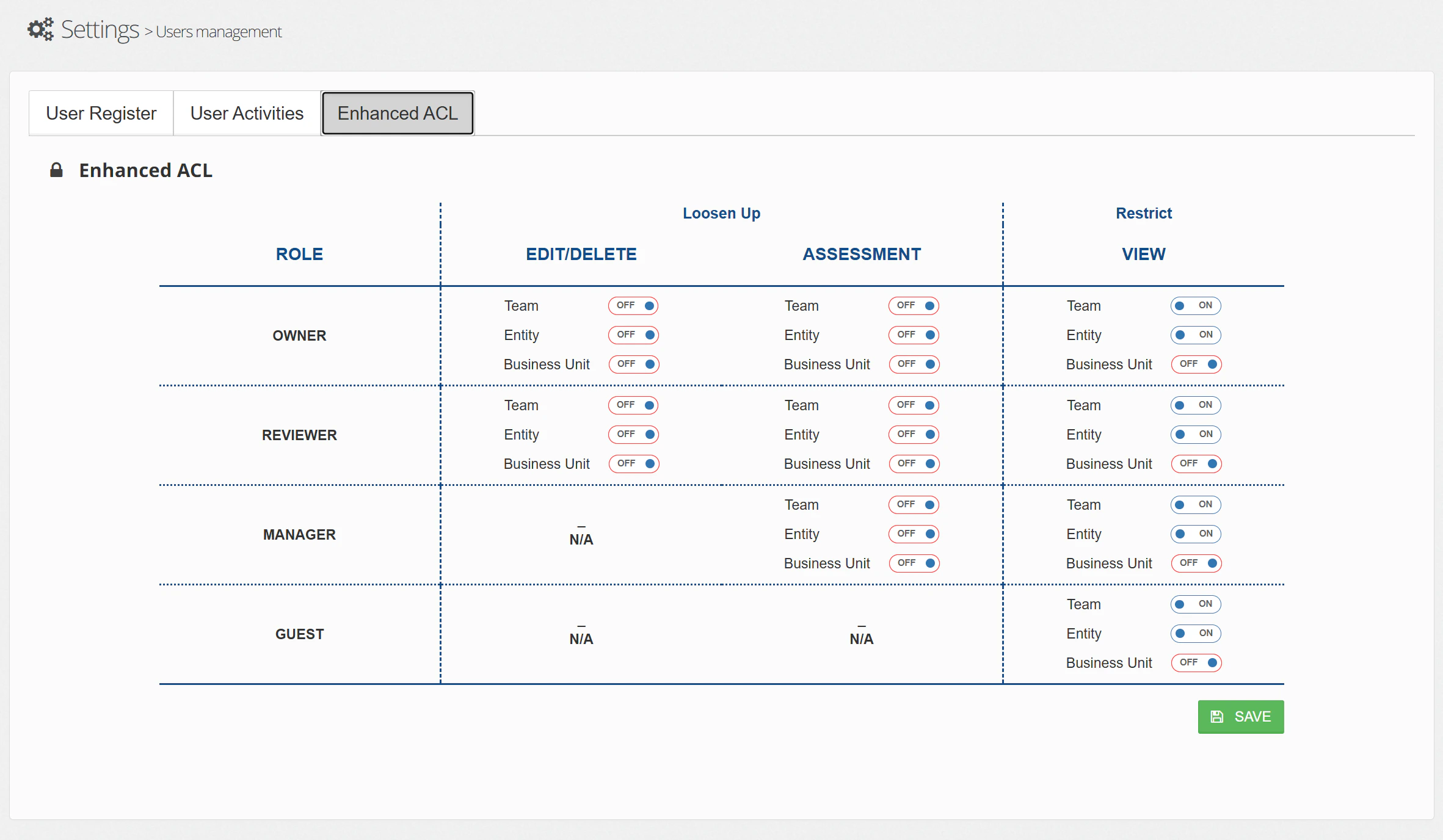
The Enhanced ACL screen is organised as a grid. Each row represents a **role type** (Owner, Reviewer, Manager, Guest), and the columns are grouped into three permission areas:
| Permission area | Default behaviour | Enhanced ACL lets you… |
| ----------------- | ------------------------------------------------------------- | ---------------------------------------------------------------------------------------------------------- |
| **View** | Unrestricted — everyone sees everything | **Restrict** visibility so users only see items that match their own team, entity, or business unit |
| **Edit / Delete** | Restricted — only the assigned person can edit or delete | **Loosen** access so other users with the same team, entity, or business unit can also edit or delete |
| **Assessment** | Restricted — only the assigned person can prepare assessments | **Loosen** access so other users with the same team, entity, or business unit can also prepare assessments |
Within each permission area, there are three toggles per role:
* **Team** — Match based on the user's team assignment
* **Entity** — Match based on the user's legal entity
* **Business Unit** — Match based on the user's business unit
### Restricting the View (right-hand column)
Toggling a View filter **on** means that role type will only see CORE Elements that share the same attribute. Toggles are **additive** — turning on multiple filters narrows visibility further.
Your organisation has two entities: **UK Insurance Ltd** and **European Holdings**.
* **Entity toggle on for Owners** — An Owner assigned to UK Insurance Ltd will only see Risks, Controls, Indicators, and Actions that belong to UK Insurance Ltd. They will no longer see items belonging to European Holdings.
* **Entity + Team toggles both on for Owners** — That same Owner will only see items that belong to UK Insurance Ltd **and** are assigned to their specific team (e.g. Finance). Items in UK Insurance Ltd assigned to the Operations team would be hidden from them.
### Loosening Edit/Delete and Assessments (left-hand and centre columns)
Toggling an Edit/Delete or Assessment filter **on** means other users of that role type who share the same attribute can also perform those actions — even if they are not personally assigned to the item.
The Finance team has three Owners: Alice, Bob, and Carol. Alice owns Control C-101, Bob owns Control C-102, and Carol owns Control C-103.
* **With Team toggle off (default)** — Alice can only edit C-101. She cannot touch Bob's or Carol's Controls.
* **With Team toggle on for Owners under Edit/Delete** — Alice, Bob, and Carol can now edit any Control owned by someone in the Finance team. Alice can edit C-102 and C-103 as well as her own. However, she still cannot edit Controls owned by people in the Operations team.
Your Actuarial team has several Reviewers responsible for reviewing Controls. Reviewer Dan is assigned to Control C-201, but he is on leave.
* **With Team toggle off (default)** — Only Dan can prepare assessments for C-201. The work is blocked until he returns.
* **With Team toggle on for Reviewers under Assessment** — Any Reviewer in the Actuarial team can step in and prepare the assessment for C-201, because they share the same team.
### Role availability
Not all permission areas apply to every role. The grid reflects this:
* **Owners** and **Reviewers** have toggles for all three areas (Edit/Delete, Assessment, and View).
* **Managers** have toggles for Assessment and View only — Edit/Delete is not available.
* **Guests** have toggles for View only — they cannot edit, delete, or assess regardless of ACL settings.
## Where user attributes are set
The team, entity, and business unit values that Enhanced ACL matches against are defined on each user's profile in the **User Register** tab.
## How it works
The Enhanced ACL screen is organised as a grid. Each row represents a **role type** (Owner, Reviewer, Manager, Guest), and the columns are grouped into three permission areas:
| Permission area | Default behaviour | Enhanced ACL lets you… |
| ----------------- | ------------------------------------------------------------- | ---------------------------------------------------------------------------------------------------------- |
| **View** | Unrestricted — everyone sees everything | **Restrict** visibility so users only see items that match their own team, entity, or business unit |
| **Edit / Delete** | Restricted — only the assigned person can edit or delete | **Loosen** access so other users with the same team, entity, or business unit can also edit or delete |
| **Assessment** | Restricted — only the assigned person can prepare assessments | **Loosen** access so other users with the same team, entity, or business unit can also prepare assessments |
Within each permission area, there are three toggles per role:
* **Team** — Match based on the user's team assignment
* **Entity** — Match based on the user's legal entity
* **Business Unit** — Match based on the user's business unit
### Restricting the View (right-hand column)
Toggling a View filter **on** means that role type will only see CORE Elements that share the same attribute. Toggles are **additive** — turning on multiple filters narrows visibility further.
Your organisation has two entities: **UK Insurance Ltd** and **European Holdings**.
* **Entity toggle on for Owners** — An Owner assigned to UK Insurance Ltd will only see Risks, Controls, Indicators, and Actions that belong to UK Insurance Ltd. They will no longer see items belonging to European Holdings.
* **Entity + Team toggles both on for Owners** — That same Owner will only see items that belong to UK Insurance Ltd **and** are assigned to their specific team (e.g. Finance). Items in UK Insurance Ltd assigned to the Operations team would be hidden from them.
### Loosening Edit/Delete and Assessments (left-hand and centre columns)
Toggling an Edit/Delete or Assessment filter **on** means other users of that role type who share the same attribute can also perform those actions — even if they are not personally assigned to the item.
The Finance team has three Owners: Alice, Bob, and Carol. Alice owns Control C-101, Bob owns Control C-102, and Carol owns Control C-103.
* **With Team toggle off (default)** — Alice can only edit C-101. She cannot touch Bob's or Carol's Controls.
* **With Team toggle on for Owners under Edit/Delete** — Alice, Bob, and Carol can now edit any Control owned by someone in the Finance team. Alice can edit C-102 and C-103 as well as her own. However, she still cannot edit Controls owned by people in the Operations team.
Your Actuarial team has several Reviewers responsible for reviewing Controls. Reviewer Dan is assigned to Control C-201, but he is on leave.
* **With Team toggle off (default)** — Only Dan can prepare assessments for C-201. The work is blocked until he returns.
* **With Team toggle on for Reviewers under Assessment** — Any Reviewer in the Actuarial team can step in and prepare the assessment for C-201, because they share the same team.
### Role availability
Not all permission areas apply to every role. The grid reflects this:
* **Owners** and **Reviewers** have toggles for all three areas (Edit/Delete, Assessment, and View).
* **Managers** have toggles for Assessment and View only — Edit/Delete is not available.
* **Guests** have toggles for View only — they cannot edit, delete, or assess regardless of ACL settings.
## Where user attributes are set
The team, entity, and business unit values that Enhanced ACL matches against are defined on each user's profile in the **User Register** tab.
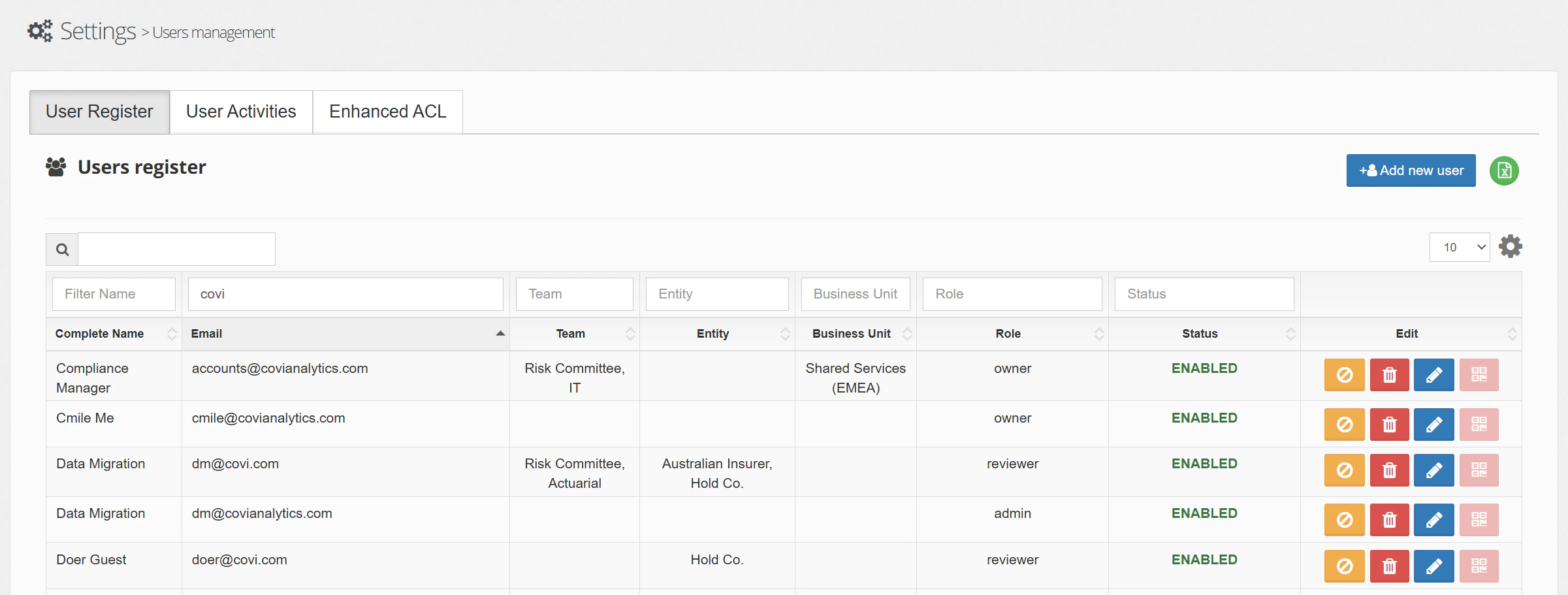 When you assign a user to a team, entity, or business unit here, those attributes determine what the Enhanced ACL rules apply to them. Make sure these fields are filled in accurately — a user with a blank Entity field, for example, will not match any entity-based ACL rule.
## Tips & Tricks
Start with the View column. Most organisations begin by restricting visibility for Managers and Guests before adjusting Edit/Delete or Assessment permissions for Owners and Reviewers.
Toggling multiple filters on for View is additive and narrows what users can see. Before enabling both Team and Entity restrictions, confirm that your CORE Elements have both attributes consistently populated — otherwise users may lose visibility of items unintentionally.
Enhanced ACL changes take effect immediately for all users of the affected role type. Coordinate with your team before making changes, particularly during active assessment periods.
For managing user accounts and their team, entity, and business unit assignments, see [User Management](/admin/user-management). For platform-wide settings and list configuration, see [Configuration](/admin/configuration).
When you assign a user to a team, entity, or business unit here, those attributes determine what the Enhanced ACL rules apply to them. Make sure these fields are filled in accurately — a user with a blank Entity field, for example, will not match any entity-based ACL rule.
## Tips & Tricks
Start with the View column. Most organisations begin by restricting visibility for Managers and Guests before adjusting Edit/Delete or Assessment permissions for Owners and Reviewers.
Toggling multiple filters on for View is additive and narrows what users can see. Before enabling both Team and Entity restrictions, confirm that your CORE Elements have both attributes consistently populated — otherwise users may lose visibility of items unintentionally.
Enhanced ACL changes take effect immediately for all users of the affected role type. Coordinate with your team before making changes, particularly during active assessment periods.
For managing user accounts and their team, entity, and business unit assignments, see [User Management](/admin/user-management). For platform-wide settings and list configuration, see [Configuration](/admin/configuration).