> ## Documentation Index
> Fetch the complete documentation index at: https://docs.covianalytics.com/llms.txt
> Use this file to discover all available pages before exploring further.
# Complaint Log
> Track and manage customer complaints with categorisation, scoring, and team assignment.
## Overview
The Complaint Log provides a single register for all complaints received by your organisation. You can record new complaints, assign them to the appropriate team, categorise them for regulatory reporting, and track their progress through to resolution. This page helps you meet your complaint-handling obligations and identify recurring themes.
## How to use it
### Viewing complaints
The log presents all complaints in a structured table. Each row shows a summary of the complaint record:
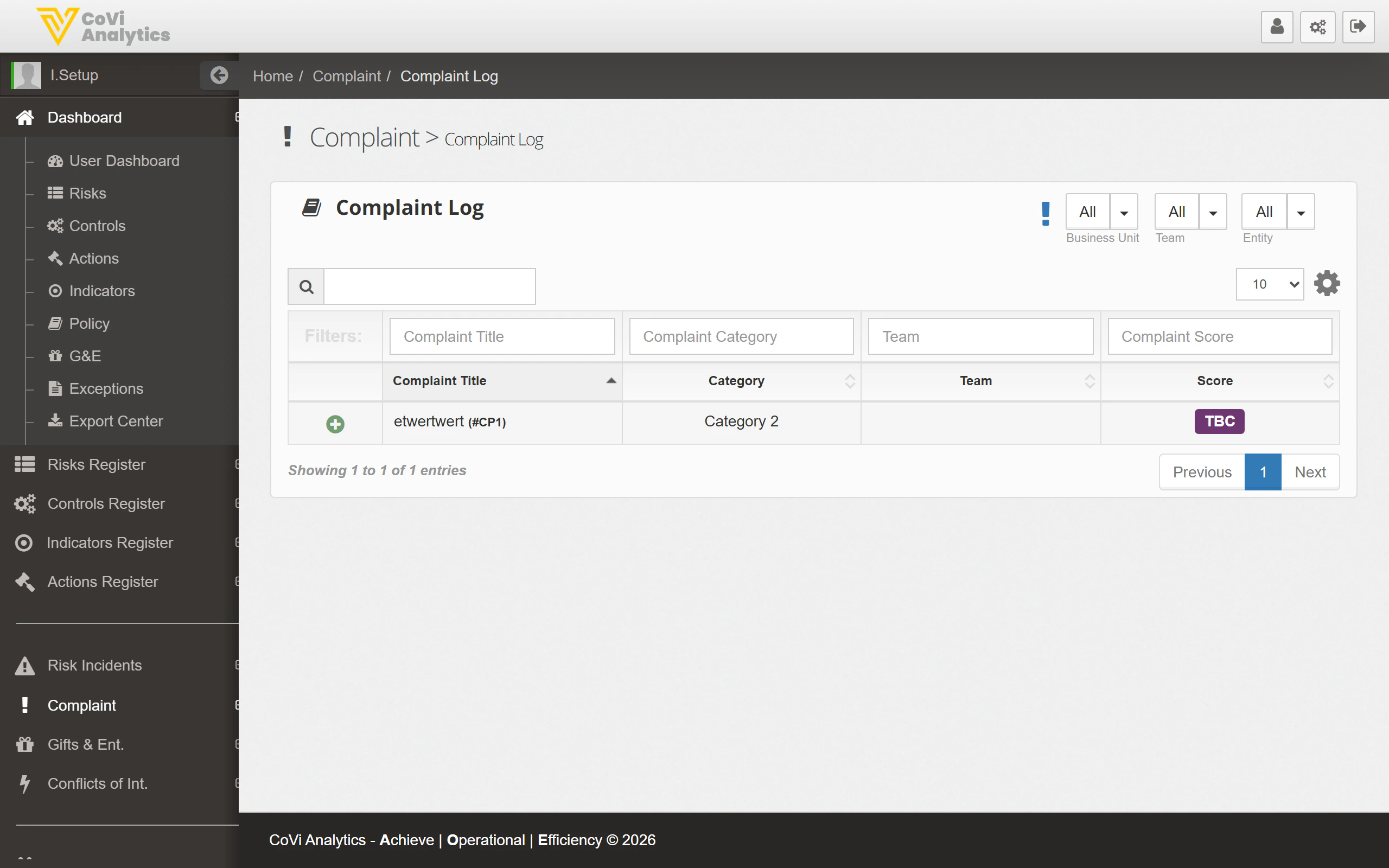 * **Complaint Title** — The name or summary of the complaint, followed by its unique reference (e.g. "etsertwer1 (CP1)").
* **Category** — The complaint classification (e.g. Category 1, Category 2) as defined by your organisation's complaint taxonomy.
* **Team** — The team responsible for handling the complaint.
* **Score** — The severity or priority score. Shows TBC if the complaint has not yet been assessed.
### Filtering and searching
Use the **Business Unit**, **Team**, and **Entity** dropdowns at the top of the page to focus on complaints within a specific part of your organisation.
The filter row beneath the column headers allows you to apply column-specific filters. Type into the **search box** to find a complaint by title or reference number.
### Logging a new complaint
Click the **+ Add New** button to open the complaint creation form. You will need to provide the complaint details, select a category, and assign it to the appropriate team.
### Pagination
Navigate through the complaint list using the pagination controls at the bottom of the table.
## Tips & Tricks
Regularly review complaints with a **TBC** score to ensure they are assessed promptly. Unscored complaints can create blind spots in your reporting.
Complaint categories are configurable. If you need to add or modify categories, ask your administrator to update them in [Configuration](/admin/configuration) under the **Complaints** tab.
Some complaint categories may trigger regulatory reporting obligations (e.g. FCA complaint returns). Make sure each complaint is correctly categorised at the point of entry.
For related workflows, see [Risk Incidents Log](/incidents/log) for incidents that may originate from complaints, and [Reporting Calendar](/reporting/log) for scheduled regulatory returns.
* **Complaint Title** — The name or summary of the complaint, followed by its unique reference (e.g. "etsertwer1 (CP1)").
* **Category** — The complaint classification (e.g. Category 1, Category 2) as defined by your organisation's complaint taxonomy.
* **Team** — The team responsible for handling the complaint.
* **Score** — The severity or priority score. Shows TBC if the complaint has not yet been assessed.
### Filtering and searching
Use the **Business Unit**, **Team**, and **Entity** dropdowns at the top of the page to focus on complaints within a specific part of your organisation.
The filter row beneath the column headers allows you to apply column-specific filters. Type into the **search box** to find a complaint by title or reference number.
### Logging a new complaint
Click the **+ Add New** button to open the complaint creation form. You will need to provide the complaint details, select a category, and assign it to the appropriate team.
### Pagination
Navigate through the complaint list using the pagination controls at the bottom of the table.
## Tips & Tricks
Regularly review complaints with a **TBC** score to ensure they are assessed promptly. Unscored complaints can create blind spots in your reporting.
Complaint categories are configurable. If you need to add or modify categories, ask your administrator to update them in [Configuration](/admin/configuration) under the **Complaints** tab.
Some complaint categories may trigger regulatory reporting obligations (e.g. FCA complaint returns). Make sure each complaint is correctly categorised at the point of entry.
For related workflows, see [Risk Incidents Log](/incidents/log) for incidents that may originate from complaints, and [Reporting Calendar](/reporting/log) for scheduled regulatory returns.