> ## Documentation Index
> Fetch the complete documentation index at: https://docs.covianalytics.com/llms.txt
> Use this file to discover all available pages before exploring further.
# Control Card
> View and manage a single control — update assessments, link risks, and track changes over time.
## Overview
The Control Card is the detailed view of a single control. This is where you review the control's current status, update its assessment, manage linked risks and actions, record evidence, and view the full audit trail of changes.
To open a Control Card, click on any control title from the [Control Register](/controls/register) or the [Controls Dashboard](/controls/dashboard). You can also navigate from the sidebar via **Controls Register** > **Control Card** and use the Load Control panel to select a specific control.
***
## Basic Information
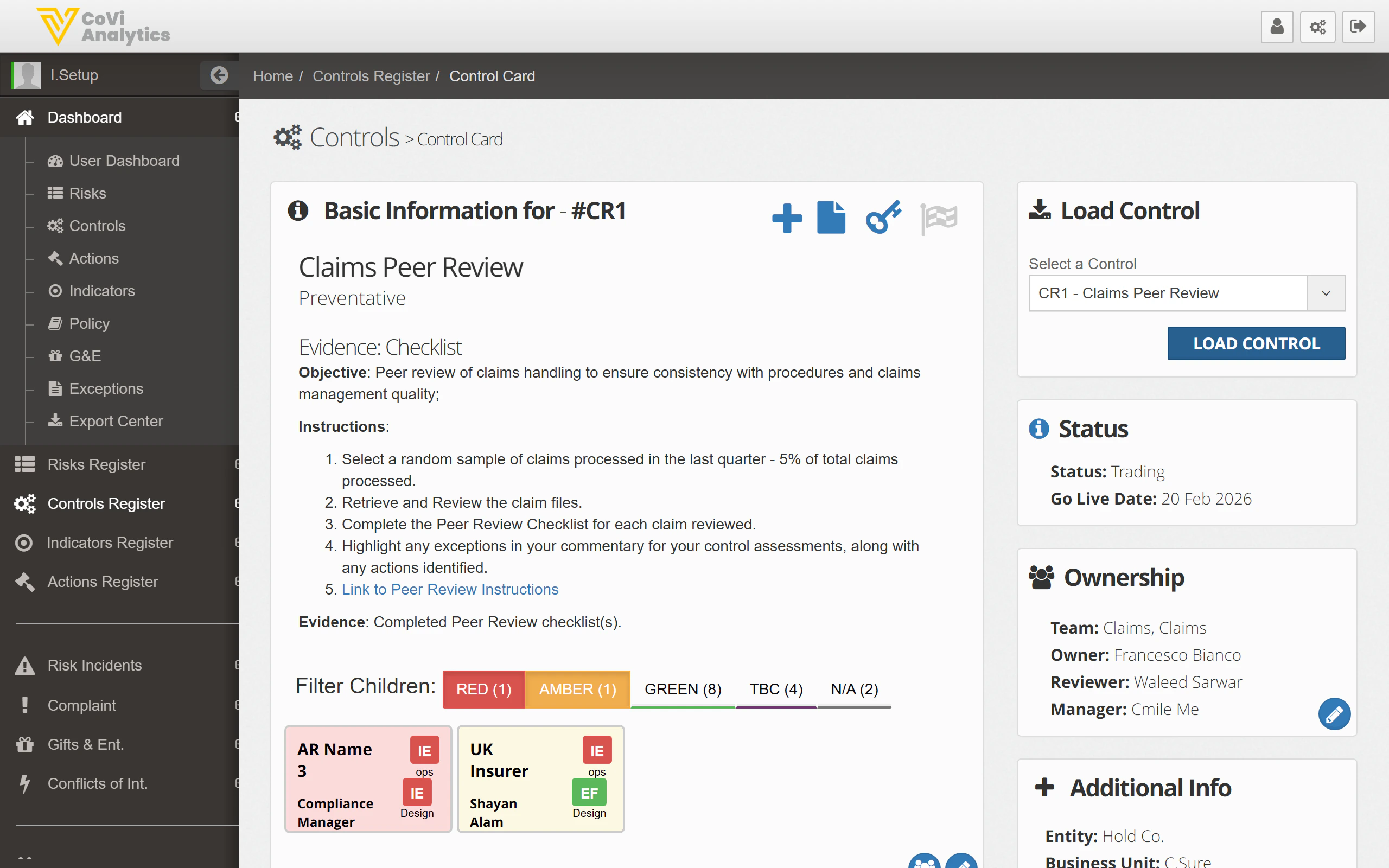 The top section shows everything that defines the control:
* **Reference and title** — the control's unique ID (e.g., #CR1) and name
* **Type** — the control type (e.g., Preventative, Detective, Corrective)
* **Objective** — what the control is designed to achieve
* **Instructions** — the step-by-step process for performing the control
* **Evidence** — what documentation demonstrates the control is operating
On the right-hand side you'll find:
* **Load Control** — select and load a different control from the dropdown
* **Status** — current status and go-live date
* **Ownership** — the team, owner, reviewer, and manager assigned to this control
* **Additional Info** — entity, business unit, and reference number
* **Review Info** — operational frequency, testing frequency, last reviewed date, and upcoming review deadlines
### Child Controls
If this control has child controls, they appear as coloured cards beneath the instructions. Use the **Filter Children** buttons (Red, Amber, Green, TBC, N/A) to narrow down which child controls are shown. Each child card shows the owner and entity, and you can click on a child to open its own Control Card.
***
## Control Effectiveness
The top section shows everything that defines the control:
* **Reference and title** — the control's unique ID (e.g., #CR1) and name
* **Type** — the control type (e.g., Preventative, Detective, Corrective)
* **Objective** — what the control is designed to achieve
* **Instructions** — the step-by-step process for performing the control
* **Evidence** — what documentation demonstrates the control is operating
On the right-hand side you'll find:
* **Load Control** — select and load a different control from the dropdown
* **Status** — current status and go-live date
* **Ownership** — the team, owner, reviewer, and manager assigned to this control
* **Additional Info** — entity, business unit, and reference number
* **Review Info** — operational frequency, testing frequency, last reviewed date, and upcoming review deadlines
### Child Controls
If this control has child controls, they appear as coloured cards beneath the instructions. Use the **Filter Children** buttons (Red, Amber, Green, TBC, N/A) to narrow down which child controls are shown. Each child card shows the owner and entity, and you can click on a child to open its own Control Card.
***
## Control Effectiveness
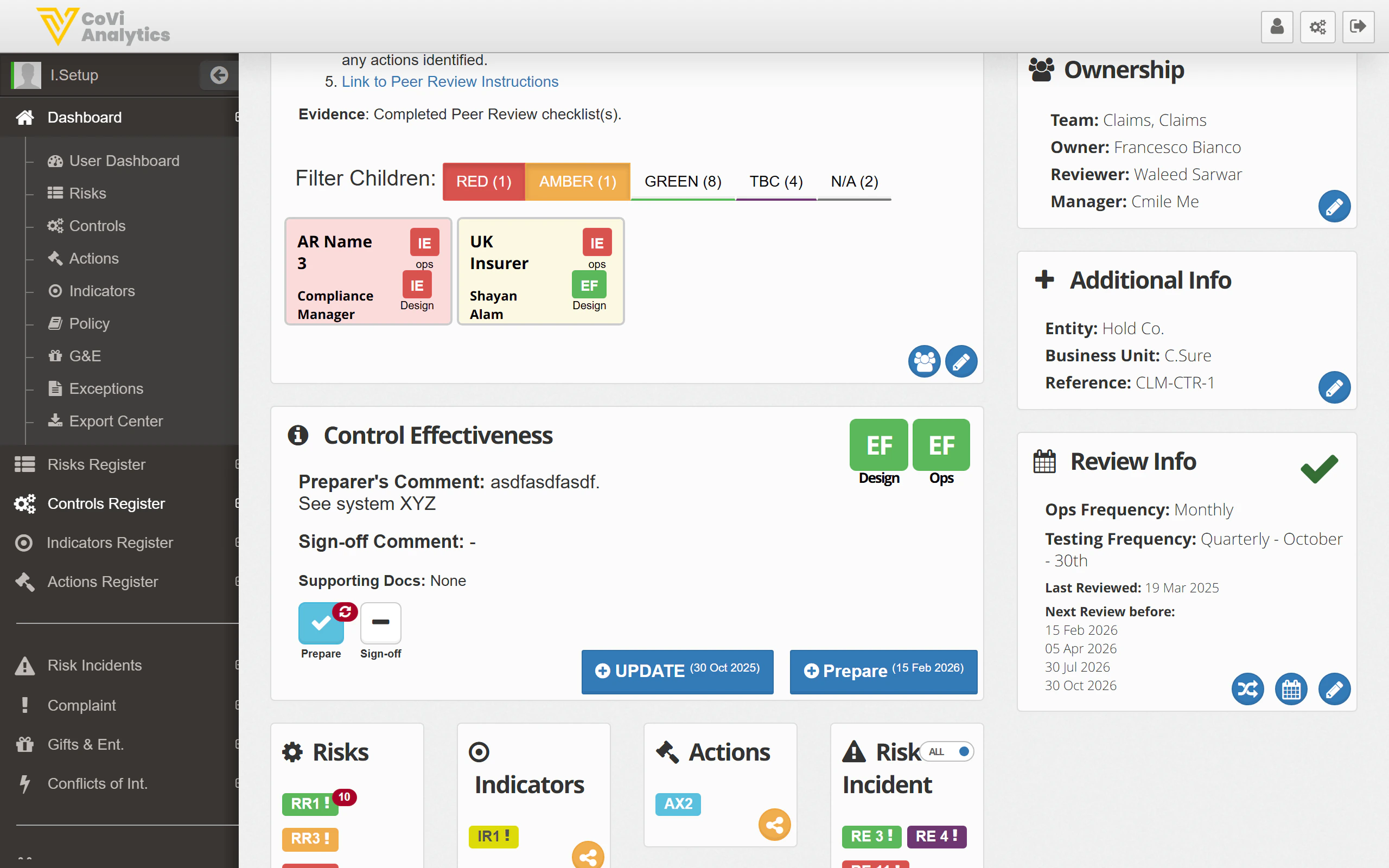 This is where the assessment cycle happens:
* **Design and Ops RAG ratings** — the coloured squares (EF) show the current Design Effectiveness and Operational Effectiveness ratings
* **Preparer's Comment** — the control owner records their assessment of how the control is performing
* **Sign-off Comment** — the reviewer adds their sign-off after reviewing the assessment
* **Supporting Docs** — attach evidence files to support the assessment
### Assessment workflow
Use the buttons at the bottom of this section to progress the assessment:
1. **Prepare** — ticked when the preparer has completed their assessment
2. **Sign-off** — ticked when the reviewer has signed off
3. **UPDATE** — saves changes and records the assessment date
4. **Prepare** (green button) — resets the control for the next assessment cycle
***
## Linked Items
This is where the assessment cycle happens:
* **Design and Ops RAG ratings** — the coloured squares (EF) show the current Design Effectiveness and Operational Effectiveness ratings
* **Preparer's Comment** — the control owner records their assessment of how the control is performing
* **Sign-off Comment** — the reviewer adds their sign-off after reviewing the assessment
* **Supporting Docs** — attach evidence files to support the assessment
### Assessment workflow
Use the buttons at the bottom of this section to progress the assessment:
1. **Prepare** — ticked when the preparer has completed their assessment
2. **Sign-off** — ticked when the reviewer has signed off
3. **UPDATE** — saves changes and records the assessment date
4. **Prepare** (green button) — resets the control for the next assessment cycle
***
## Linked Items
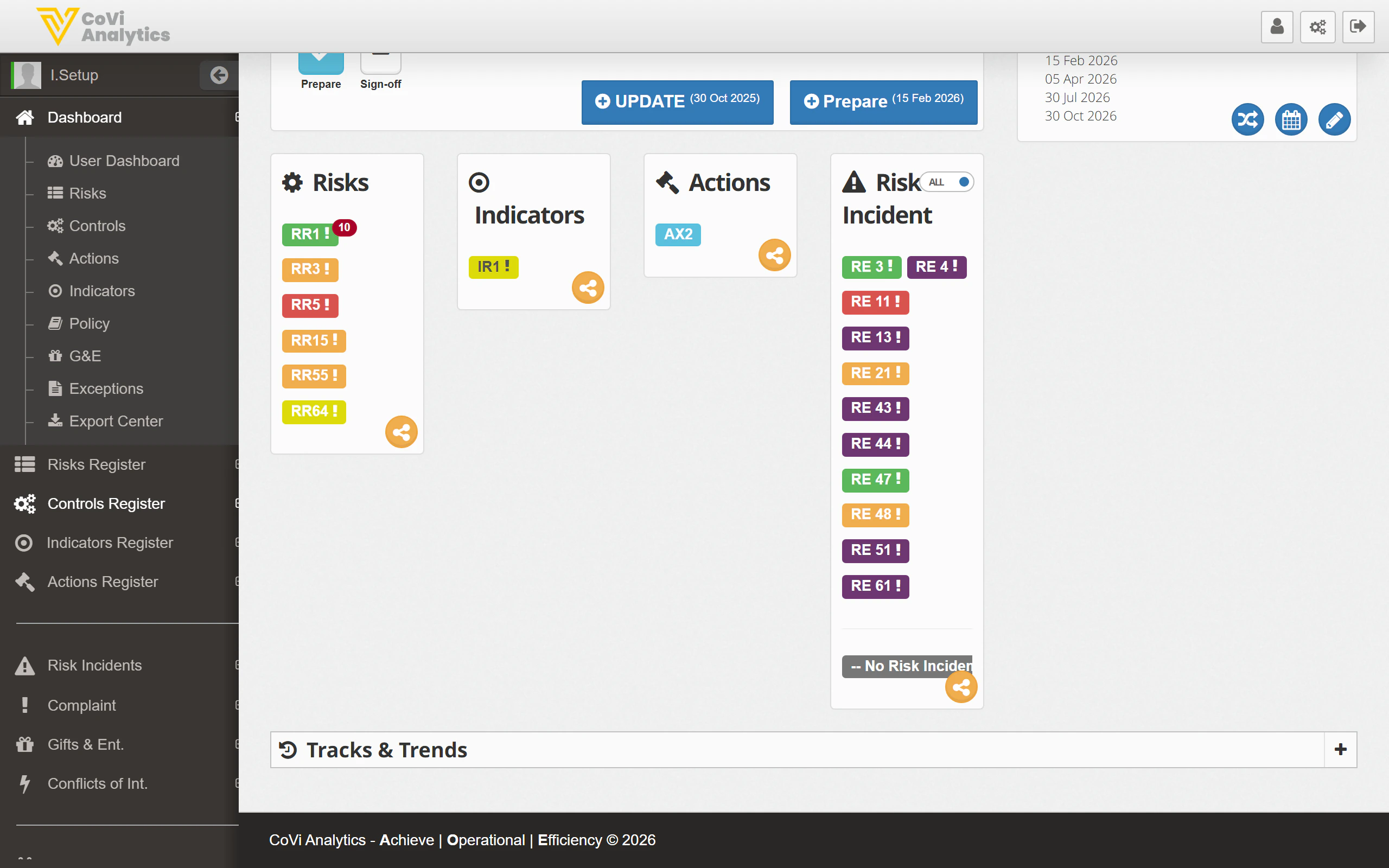 The bottom of the card shows everything connected to this control, organised into four columns:
* **Risks** — the risks this control mitigates, shown as coloured badges (e.g., RR1, RR3). Click any badge to open that risk's record. Use the link icon to add or remove risk associations.
* **Indicators** — key risk indicators linked to this control (e.g., IR1). These help you monitor whether the control is working as expected.
* **Actions** — any open actions related to the control (e.g., AX2). Actions track follow-up work such as remediation or improvements.
* **Risk Incidents** — incidents where this control was relevant (e.g., RE 3, RE 4). The toggle at the top lets you switch between showing all incidents or just unlinked ones.
***
## Tracks & Trends
At the very bottom of the Control Card, the **Tracks & Trends** section provides a full audit trail. Click the **+** icon to expand it. It contains three tabs:
### Control Assessment
The bottom of the card shows everything connected to this control, organised into four columns:
* **Risks** — the risks this control mitigates, shown as coloured badges (e.g., RR1, RR3). Click any badge to open that risk's record. Use the link icon to add or remove risk associations.
* **Indicators** — key risk indicators linked to this control (e.g., IR1). These help you monitor whether the control is working as expected.
* **Actions** — any open actions related to the control (e.g., AX2). Actions track follow-up work such as remediation or improvements.
* **Risk Incidents** — incidents where this control was relevant (e.g., RE 3, RE 4). The toggle at the top lets you switch between showing all incidents or just unlinked ones.
***
## Tracks & Trends
At the very bottom of the Control Card, the **Tracks & Trends** section provides a full audit trail. Click the **+** icon to expand it. It contains three tabs:
### Control Assessment
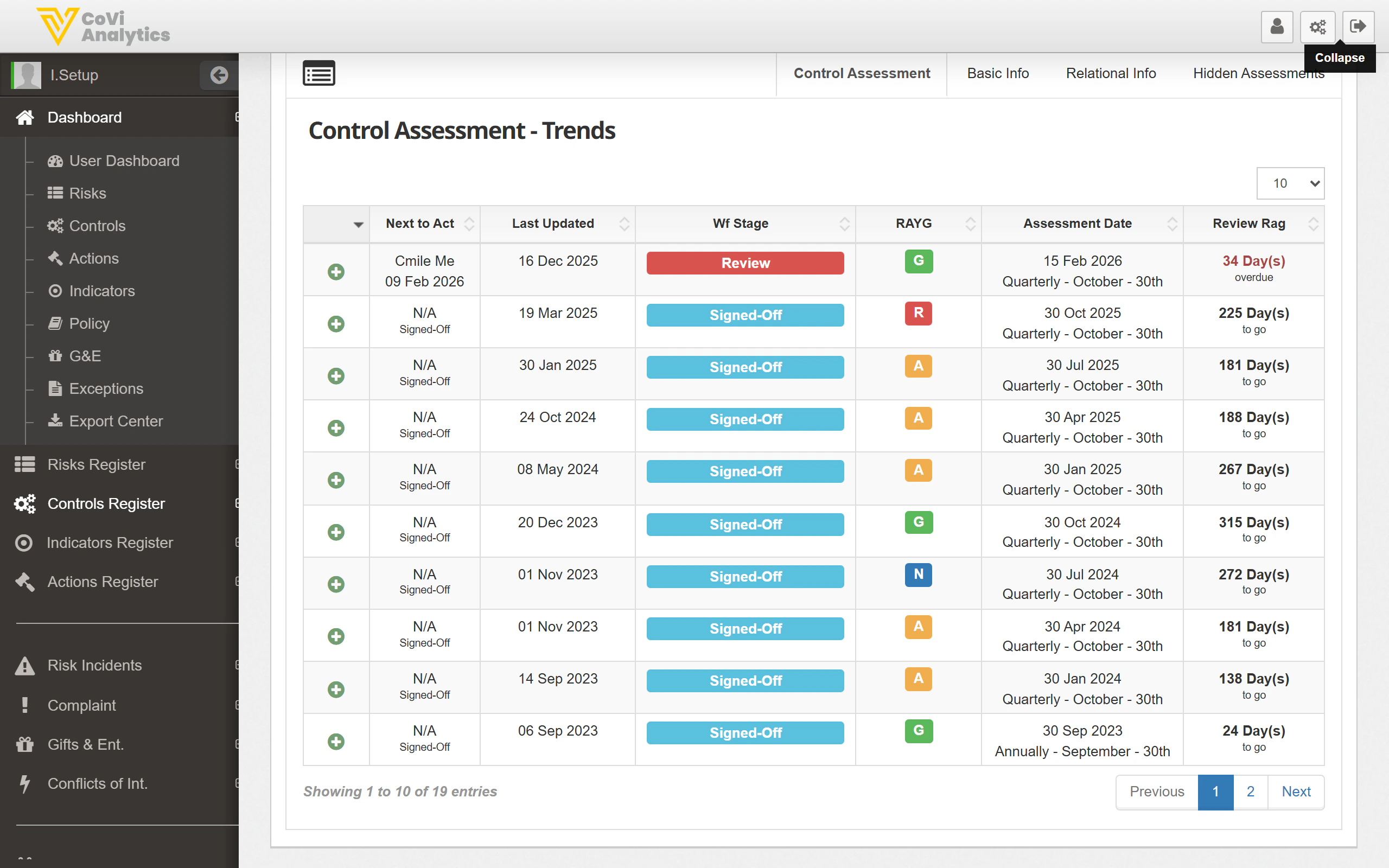 A complete log of every assessment cycle for this control:
| Column | What it shows |
| ------------------- | ---------------------------------------------------------- |
| **Next to Act** | Who is next responsible for action and by when |
| **Last Updated** | When the assessment was last modified |
| **Wf Stage** | The workflow stage — Review, Signed-Off, etc. |
| **RAYG** | The RAG rating at the time of assessment |
| **Assessment Date** | When the assessment was performed and the period it covers |
| **Review Rag** | How many days the review took, colour-coded by timeliness |
### Basic Info
A complete log of every assessment cycle for this control:
| Column | What it shows |
| ------------------- | ---------------------------------------------------------- |
| **Next to Act** | Who is next responsible for action and by when |
| **Last Updated** | When the assessment was last modified |
| **Wf Stage** | The workflow stage — Review, Signed-Off, etc. |
| **RAYG** | The RAG rating at the time of assessment |
| **Assessment Date** | When the assessment was performed and the period it covers |
| **Review Rag** | How many days the review took, colour-coded by timeliness |
### Basic Info
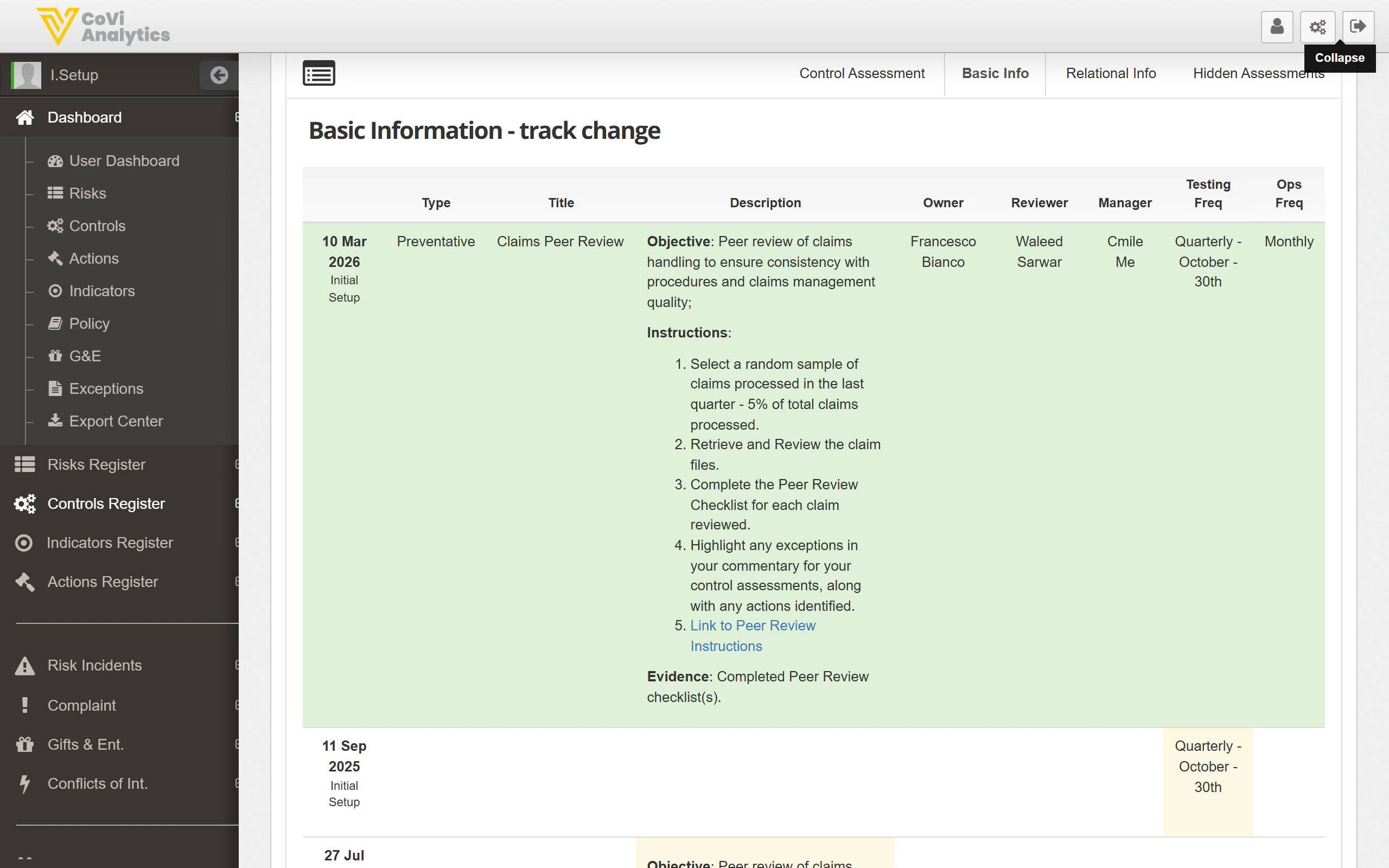 A timestamped record of every change to the control's core fields — title, type, objective, instructions, evidence, owner, reviewer, manager, and frequencies. Each row shows the date, who made the change, and the full field values at that point in time. Use this to understand how a control has evolved or to audit configuration changes.
### Relational Info
A timestamped record of every change to the control's core fields — title, type, objective, instructions, evidence, owner, reviewer, manager, and frequencies. Each row shows the date, who made the change, and the full field values at that point in time. Use this to understand how a control has evolved or to audit configuration changes.
### Relational Info
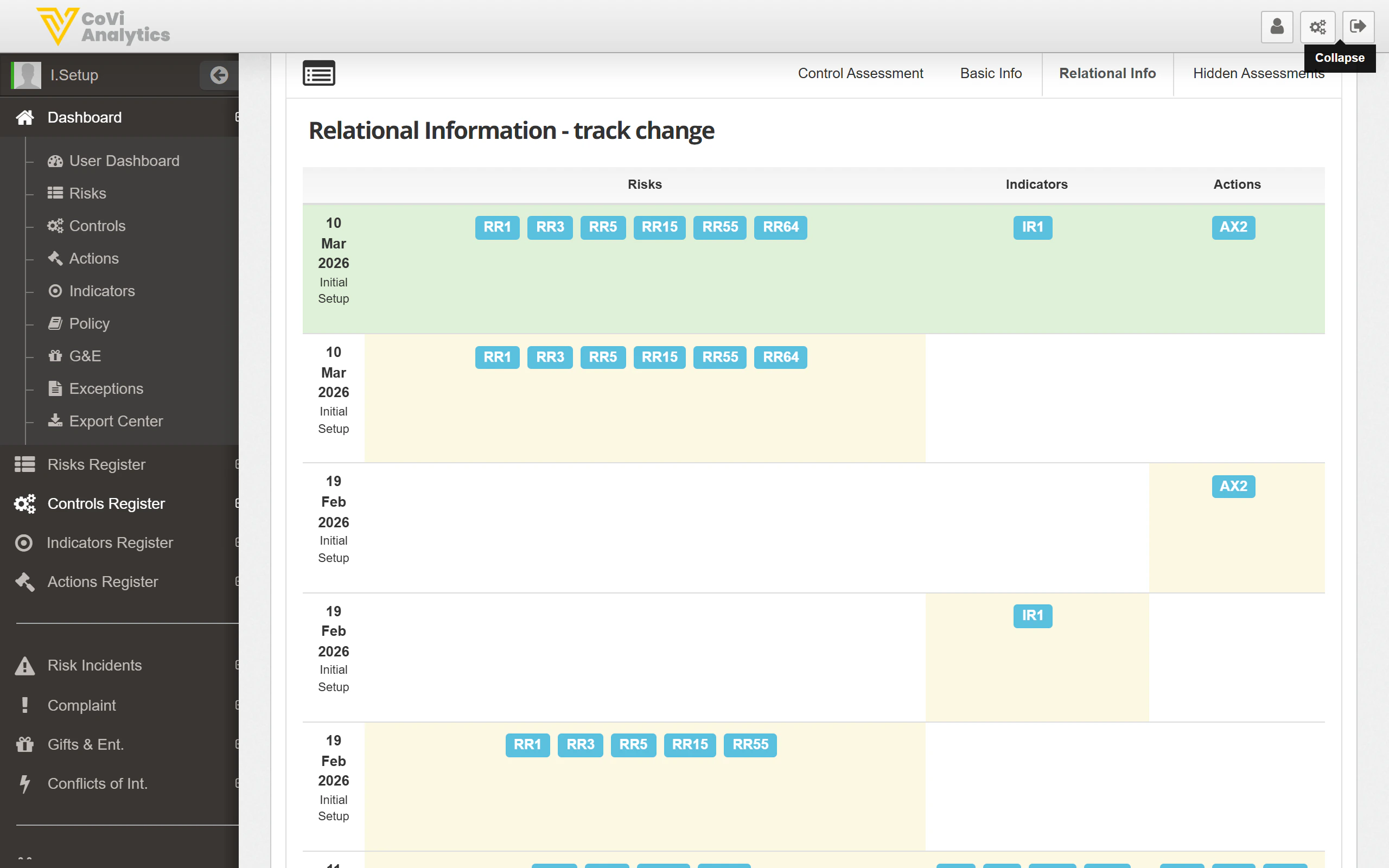 A history of how the control's relationships have changed over time — which risks, indicators, and actions were linked or unlinked and when. Each row shows the full set of linked items at that point in time, making it easy to see what was added or removed between dates.
***
## Tips & Tricks
Always add a clear **Preparer's Comment** before requesting sign-off. The reviewer needs context on what you checked and what you found — a blank comment will likely be sent back.
Use the **Supporting Docs** section to attach screenshots, reports, or sample checks. This saves significant time during internal and external audits.
Check the **Tracks & Trends** section before your next review. The Assessment tab shows how long each review cycle took — if timings are slipping, it's a sign the control may need simplifying.
Changes to the Control Card are only saved when you click **UPDATE**. If you navigate away without updating, your changes will be lost.
The child controls filter buttons (Red, Amber, Green) refer to the child's own RAG rating, not the parent's. This helps you quickly spot which child controls need attention.
A history of how the control's relationships have changed over time — which risks, indicators, and actions were linked or unlinked and when. Each row shows the full set of linked items at that point in time, making it easy to see what was added or removed between dates.
***
## Tips & Tricks
Always add a clear **Preparer's Comment** before requesting sign-off. The reviewer needs context on what you checked and what you found — a blank comment will likely be sent back.
Use the **Supporting Docs** section to attach screenshots, reports, or sample checks. This saves significant time during internal and external audits.
Check the **Tracks & Trends** section before your next review. The Assessment tab shows how long each review cycle took — if timings are slipping, it's a sign the control may need simplifying.
Changes to the Control Card are only saved when you click **UPDATE**. If you navigate away without updating, your changes will be lost.
The child controls filter buttons (Red, Amber, Green) refer to the child's own RAG rating, not the parent's. This helps you quickly spot which child controls need attention.