> ## Documentation Index
> Fetch the complete documentation index at: https://docs.covianalytics.com/llms.txt
> Use this file to discover all available pages before exploring further.
# Control Weights
> Assign effectiveness weights to controls and see how they affect the linked risk's rating.
## Overview
Control Weights let you define how much each control contributes to mitigating a specific risk. This is where the quantitative side of your control framework comes together — you assess each control's effectiveness and immediately see how that affects the risk's inherent, residual, and forecast ratings.
From the sidebar, expand **Controls Register** and click **Weights**.
 ## How to use it
### Selecting a risk
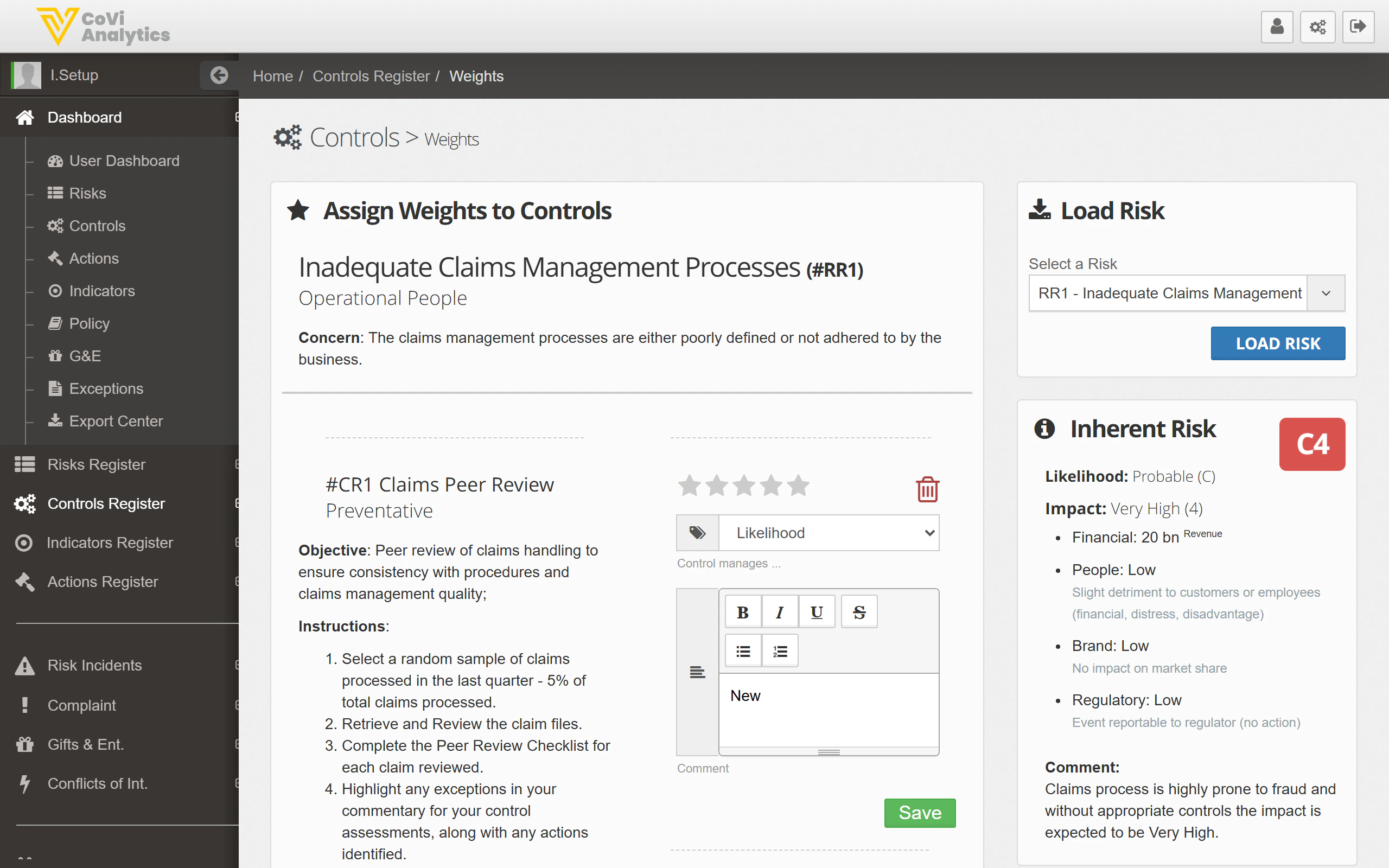
Use the **Load Risk** panel on the right to choose which risk you want to assess:
1. Select a risk from the dropdown
2. Click **Load Risk**
The page will display all controls linked to that risk, along with the risk's current scoring.
### Understanding the layout
Once a risk is loaded, the page shows:
* **Risk details** — the risk title, reference, concern statement, and the team responsible
* **Linked controls** — each control appears as a card with its objective, instructions, and an effectiveness rating (star rating)
* **Assessment editor** — a rich text area where you can document your assessment of the control's effectiveness
### Risk scoring panel
The right-hand panel shows how the risk is currently rated:
* **Inherent Risk** — the risk level before any controls are applied, shown as a matrix score (e.g., C4)
* **Likelihood** and **Impact** breakdowns across Financial, People, Brand, and Regulatory dimensions
* **Comment** — a narrative summary of the risk assessment
### Rating a control
Use the **star rating** next to each control to score its effectiveness. The rating feeds into the overall risk calculation:
* More stars = more effective control
* The combined weight of all controls on a risk determines the gap between inherent and residual risk scores
### Saving your assessment
Click **Save** after updating your ratings and comments. The risk scores on the right will recalculate to reflect your changes.
## Tips & Tricks
Review weights quarterly alongside your control assessments. A control that was effective six months ago may have degraded — the star rating should reflect its current state.
Use the **Comment** field on the risk panel to explain any significant changes in the residual score. Board members and auditors will look here for narrative context.
Changing a control's weight affects the residual risk score for everyone who views that risk. Coordinate with the risk owner before making significant changes.
If a risk has many linked controls, focus your assessment time on the controls with the highest impact on the residual score. The star ratings help you see at a glance which controls are pulling the most weight.
## How to use it
### Selecting a risk
Use the **Load Risk** panel on the right to choose which risk you want to assess:
1. Select a risk from the dropdown
2. Click **Load Risk**
The page will display all controls linked to that risk, along with the risk's current scoring.
### Understanding the layout
Once a risk is loaded, the page shows:
* **Risk details** — the risk title, reference, concern statement, and the team responsible
* **Linked controls** — each control appears as a card with its objective, instructions, and an effectiveness rating (star rating)
* **Assessment editor** — a rich text area where you can document your assessment of the control's effectiveness
### Risk scoring panel
The right-hand panel shows how the risk is currently rated:
* **Inherent Risk** — the risk level before any controls are applied, shown as a matrix score (e.g., C4)
* **Likelihood** and **Impact** breakdowns across Financial, People, Brand, and Regulatory dimensions
* **Comment** — a narrative summary of the risk assessment
### Rating a control
Use the **star rating** next to each control to score its effectiveness. The rating feeds into the overall risk calculation:
* More stars = more effective control
* The combined weight of all controls on a risk determines the gap between inherent and residual risk scores
### Saving your assessment
Click **Save** after updating your ratings and comments. The risk scores on the right will recalculate to reflect your changes.
## Tips & Tricks
Review weights quarterly alongside your control assessments. A control that was effective six months ago may have degraded — the star rating should reflect its current state.
Use the **Comment** field on the risk panel to explain any significant changes in the residual score. Board members and auditors will look here for narrative context.
Changing a control's weight affects the residual risk score for everyone who views that risk. Coordinate with the risk owner before making significant changes.
If a risk has many linked controls, focus your assessment time on the controls with the highest impact on the residual score. The star ratings help you see at a glance which controls are pulling the most weight.