> ## Documentation Index
> Fetch the complete documentation index at: https://docs.covianalytics.com/llms.txt
> Use this file to discover all available pages before exploring further.
# Indicators Register
> View, search, and manage all indicators in one place.
## Overview
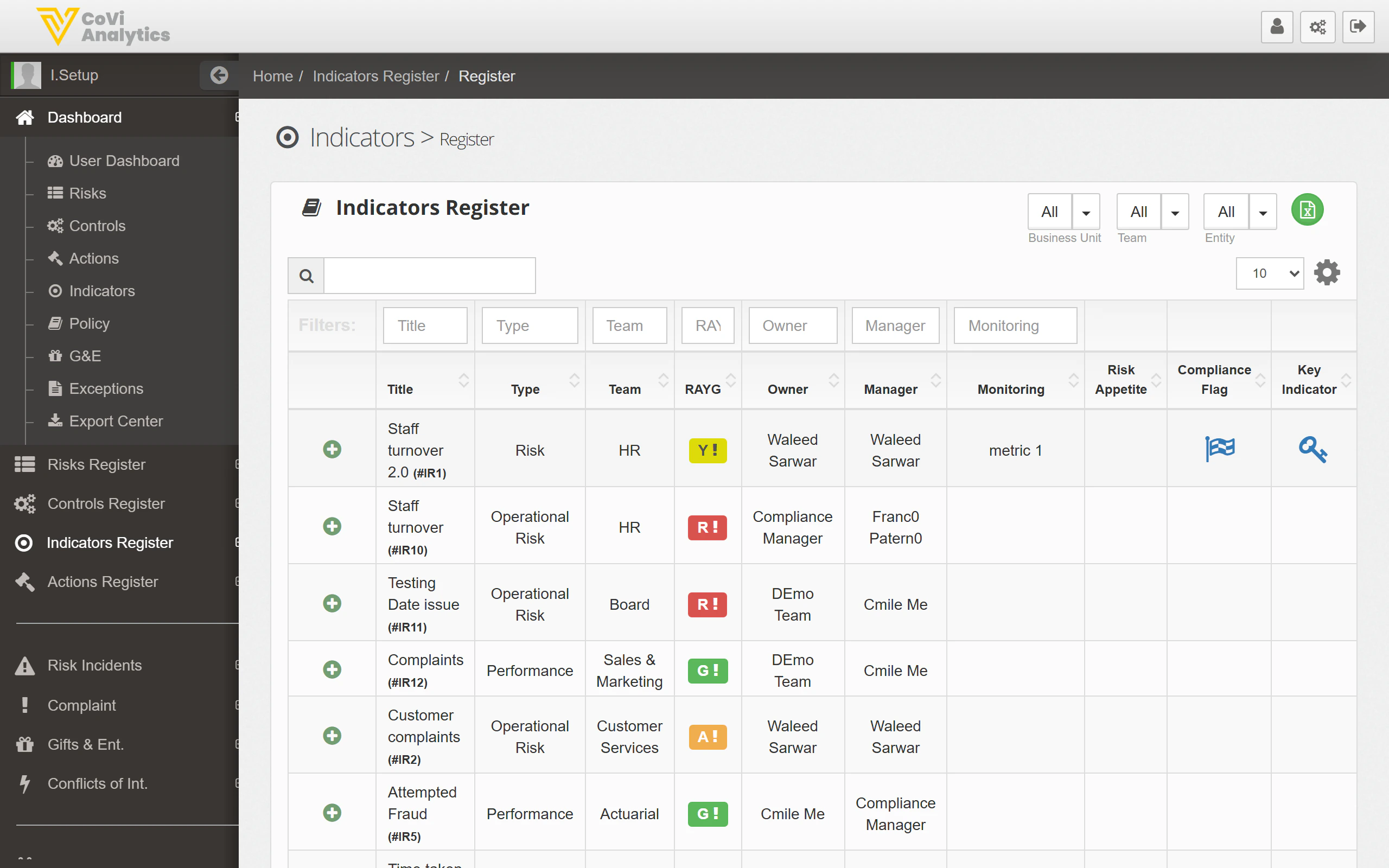
The Indicators Register is the master list of every key risk indicator in your organisation. Use it to find specific indicators, review their status and upcoming review dates, and navigate to individual indicator records for editing.
From the sidebar, expand **Indicators Register** and click **Register**.
 ## How to use it
### Searching and filtering
* **Search box** — type any keyword to search across all indicator fields
* **Column filters** — use the filter row beneath the column headers to narrow by Title, Type, Owner, Status, or other fields
* **Dropdown filters** — the dropdowns above the table let you filter by Business Unit, Team, and Entity before the table loads
### Understanding the columns
| Column | What it shows |
| --------------- | ------------------------------------------------------------------------------------------- |
| **Title** | The indicator name — click it to open the full [Indicator Card](/indicators/indicator-card) |
| **Type** | The indicator type (e.g., Leading, Lagging) |
| **Owner** | The person responsible for reviewing this indicator |
| **RAYG** | The Red/Amber/Yellow/Green status rating |
| **Next Review** | When the indicator is next due for review |
| **Entity** | The legal entity this indicator belongs to |
### Action buttons
The icons in the top-right corner of the register give you quick access to:
* **Add new indicator** (green plus icon) — creates a new indicator record
* **Export** (download icon) — export the current view to a spreadsheet
* **Print** — generate a printable version of the register
### Pagination
Use the **Previous** / **Next** buttons and the rows-per-page dropdown (10, 25, 50, 100) to navigate through large lists.
## Tips & Tricks
Combine column filters with the global search for precise results. For example, filter by Entity first, then search for a keyword in the indicator title.
Click any column header to sort the register by that field. Click again to reverse the sort order.
If you need to review all overdue indicators, it may be quicker to use the [Indicators Dashboard](/indicators/dashboard) and click the **Overdue** tile — it pre-filters for you.
The Indicators Register follows the same layout as the [Control Register](/controls/register) and [Actions Register](/actions/register). The search and filter controls work identically across all registers.
## How to use it
### Searching and filtering
* **Search box** — type any keyword to search across all indicator fields
* **Column filters** — use the filter row beneath the column headers to narrow by Title, Type, Owner, Status, or other fields
* **Dropdown filters** — the dropdowns above the table let you filter by Business Unit, Team, and Entity before the table loads
### Understanding the columns
| Column | What it shows |
| --------------- | ------------------------------------------------------------------------------------------- |
| **Title** | The indicator name — click it to open the full [Indicator Card](/indicators/indicator-card) |
| **Type** | The indicator type (e.g., Leading, Lagging) |
| **Owner** | The person responsible for reviewing this indicator |
| **RAYG** | The Red/Amber/Yellow/Green status rating |
| **Next Review** | When the indicator is next due for review |
| **Entity** | The legal entity this indicator belongs to |
### Action buttons
The icons in the top-right corner of the register give you quick access to:
* **Add new indicator** (green plus icon) — creates a new indicator record
* **Export** (download icon) — export the current view to a spreadsheet
* **Print** — generate a printable version of the register
### Pagination
Use the **Previous** / **Next** buttons and the rows-per-page dropdown (10, 25, 50, 100) to navigate through large lists.
## Tips & Tricks
Combine column filters with the global search for precise results. For example, filter by Entity first, then search for a keyword in the indicator title.
Click any column header to sort the register by that field. Click again to reverse the sort order.
If you need to review all overdue indicators, it may be quicker to use the [Indicators Dashboard](/indicators/dashboard) and click the **Overdue** tile — it pre-filters for you.
The Indicators Register follows the same layout as the [Control Register](/controls/register) and [Actions Register](/actions/register). The search and filter controls work identically across all registers.