> ## Documentation Index
> Fetch the complete documentation index at: https://docs.covianalytics.com/llms.txt
> Use this file to discover all available pages before exploring further.
# Reporting Calendar
> Plan, track, and manage all regulatory and internal reports from a single calendar view.
## Overview
The Reporting Calendar (also referred to as the Reports Log) is your central hub for managing every report your organisation needs to produce. Whether it is a regulatory return, board report, or internal management information pack, this page lets you track ownership, deadlines, governance sign-off, and approval workflows in one place.
## How to use it
### Viewing reports
The log displays all scheduled and ad-hoc reports in a detailed table:
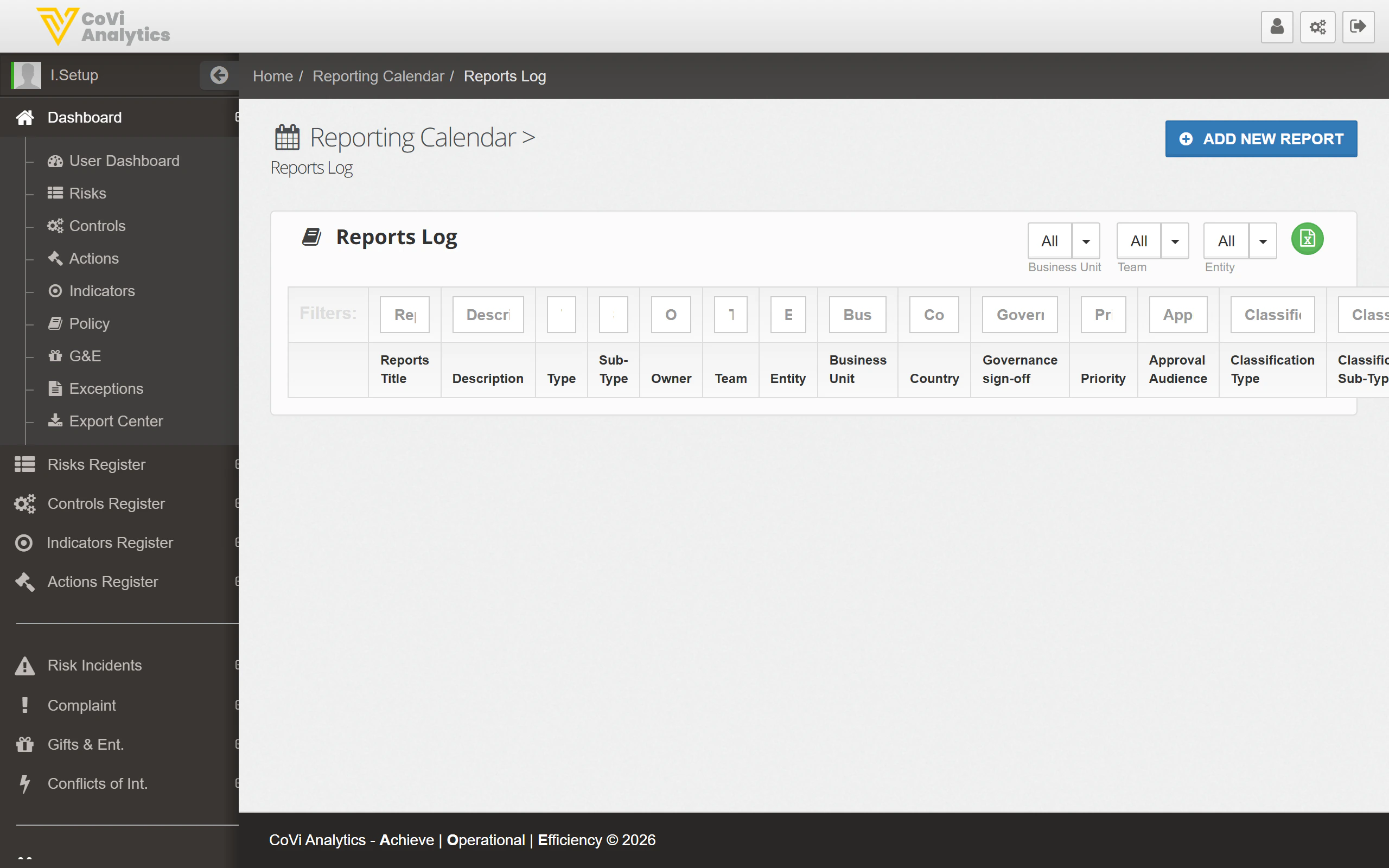 * **Reports Title** — The name of the report.
* **Description** — A brief summary of the report's purpose or content.
* **Type** — The high-level report category (e.g. Regulatory, Internal, Board).
* **Sub-Type** — A more specific classification within the type.
* **Owner** — The person responsible for producing the report.
* **Team** — The team assigned to the report.
* **Entity** — The legal entity the report covers.
* **Business Unit** — The business unit responsible.
* **Country** — The jurisdiction the report relates to.
* **Governance sign-off** — Indicates whether the report requires formal governance approval.
* **Priority** — The urgency or importance level of the report.
* **Approval Audience** — Who needs to review and approve the report before submission.
* **Classification Type / Sub-Type** — Additional classification fields for internal taxonomy.
### Filtering and searching
Use the **Business Unit**, **Team**, and **Entity** dropdowns at the top of the page to focus on reports relevant to your area. The filter row beneath the column headers allows column-level filtering, which is especially useful given the number of columns in this view.
### Adding a new report
Click the green **ADD NEW REPORT** button to create a new report entry. You will be prompted to fill in the report details, assign ownership, and set the governance and approval requirements.
### Pagination
Navigate through the report list using the pagination controls at the bottom of the table.
## Tips & Tricks
Use the **Priority** column to sort reports by urgency. This helps you focus on upcoming deadlines and avoid missed submissions.
Reports with **Governance sign-off** enabled cannot be submitted until the designated approver has signed off. Build this into your timeline to avoid last-minute delays.
Report types and sub-types are configurable by your administrator. If you need a new report classification, request the change through [Configuration](/admin/configuration) under the **Reporting** tab.
For related pages, see [Risk Incidents Log](/incidents/log) for events that may need to be included in regulatory reports, and [Business Processes](/business-processes/list) for the workflows that feed into your reporting cycle.
* **Reports Title** — The name of the report.
* **Description** — A brief summary of the report's purpose or content.
* **Type** — The high-level report category (e.g. Regulatory, Internal, Board).
* **Sub-Type** — A more specific classification within the type.
* **Owner** — The person responsible for producing the report.
* **Team** — The team assigned to the report.
* **Entity** — The legal entity the report covers.
* **Business Unit** — The business unit responsible.
* **Country** — The jurisdiction the report relates to.
* **Governance sign-off** — Indicates whether the report requires formal governance approval.
* **Priority** — The urgency or importance level of the report.
* **Approval Audience** — Who needs to review and approve the report before submission.
* **Classification Type / Sub-Type** — Additional classification fields for internal taxonomy.
### Filtering and searching
Use the **Business Unit**, **Team**, and **Entity** dropdowns at the top of the page to focus on reports relevant to your area. The filter row beneath the column headers allows column-level filtering, which is especially useful given the number of columns in this view.
### Adding a new report
Click the green **ADD NEW REPORT** button to create a new report entry. You will be prompted to fill in the report details, assign ownership, and set the governance and approval requirements.
### Pagination
Navigate through the report list using the pagination controls at the bottom of the table.
## Tips & Tricks
Use the **Priority** column to sort reports by urgency. This helps you focus on upcoming deadlines and avoid missed submissions.
Reports with **Governance sign-off** enabled cannot be submitted until the designated approver has signed off. Build this into your timeline to avoid last-minute delays.
Report types and sub-types are configurable by your administrator. If you need a new report classification, request the change through [Configuration](/admin/configuration) under the **Reporting** tab.
For related pages, see [Risk Incidents Log](/incidents/log) for events that may need to be included in regulatory reports, and [Business Processes](/business-processes/list) for the workflows that feed into your reporting cycle.