

Overview
The Action Card is the detailed view of a single action. This is where you review the action’s current status, update its progress, manage ownership and due dates, and see which risks and controls are linked to it. To open an Action Card, click on any action title from the Actions Register or the Actions Dashboard. You can also navigate from the sidebar via Actions Register > Action Card and use the Load panel to select a specific action.Basic Information
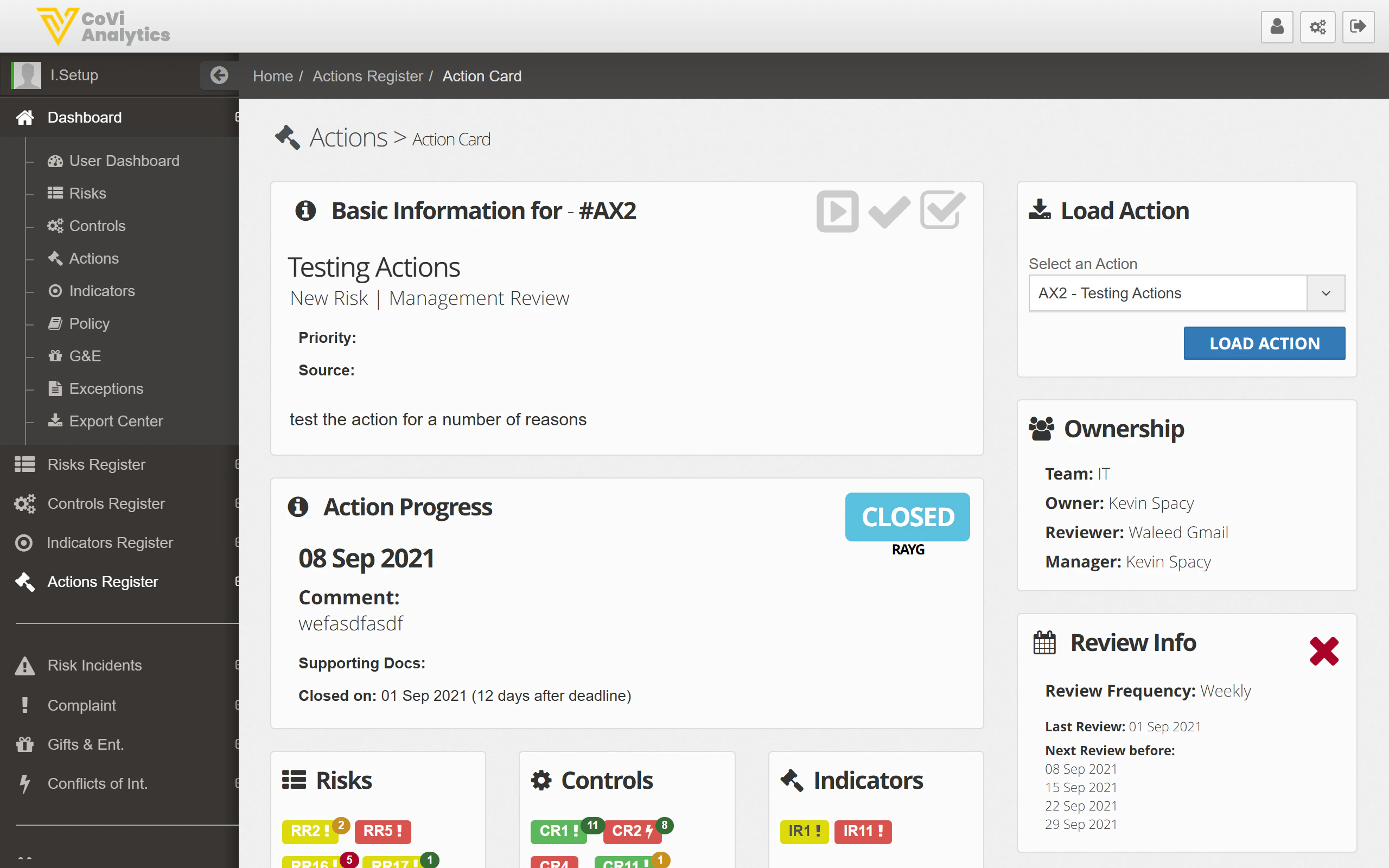
- Reference and title — the action’s unique ID and name
- Type — the action type (e.g., Remediation, Improvement, Compliance)
- Description — what the action involves and what it is designed to achieve
- Owner — the person responsible for completing the action
- Due date — the target completion date for the action
- Status — the current status (e.g., Open, In Progress, Closed)
- Load Action — select and load a different action from the dropdown
- Ownership — the team, owner, and manager assigned to this action
- Additional Info — entity, business unit, and reference number
Linked Items
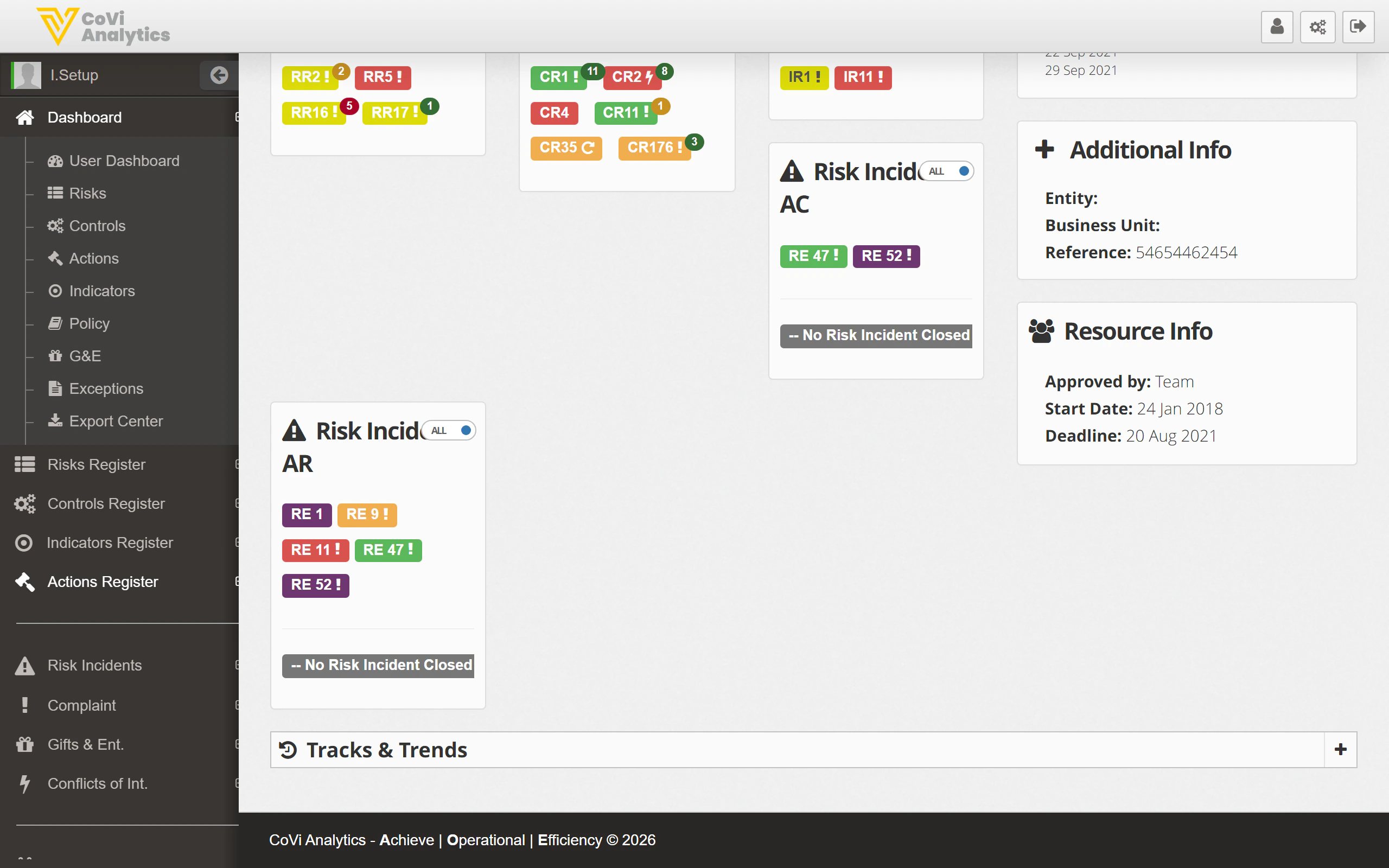
- Risks — the risks this action relates to, shown as coloured badges. Click any badge to open that risk’s record. Use the link icon to add or remove risk associations.
- Controls — controls linked to this action. These indicate which controls this action supports or remediates. Click any badge to open the Control Card.
Tips & Tricks
The Action Card follows the same layout pattern as the Control Card. If you are familiar with one, you will find the other straightforward to navigate.