

Overview
By default, CORE is designed to promote transparency: every user can view all information across the platform, regardless of which team or entity they belong to. Only the people directly assigned to a CORE Element (such as a Risk, Control, Indicator, or Action) can edit, delete, or prepare assessments for it. Enhanced ACL lets Client Admins adjust these defaults — tightening who can view information, or loosening who can edit and assess it. You’ll find it under Settings > User Management > Enhanced ACL.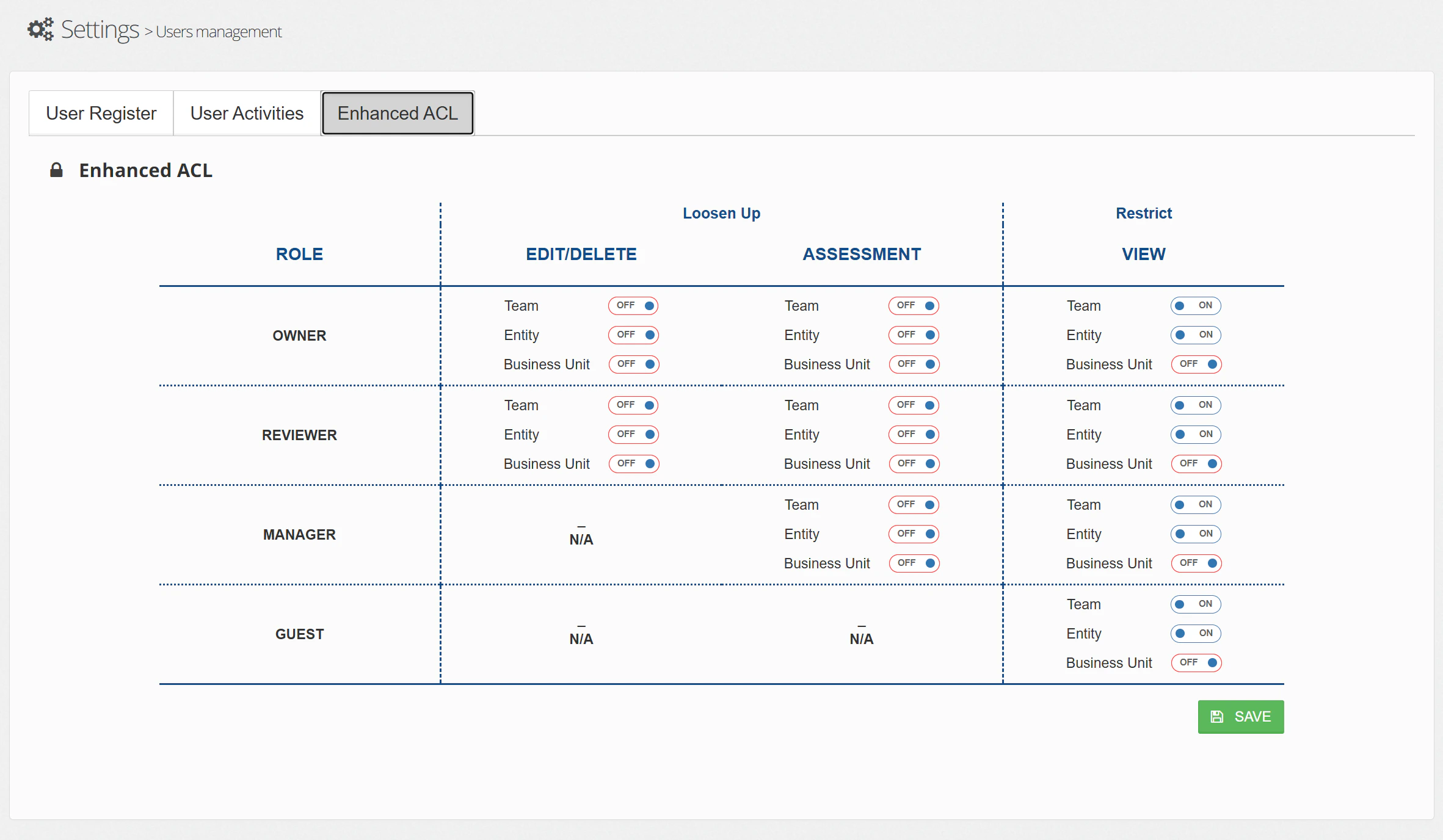
How it works
The Enhanced ACL screen is organised as a grid. Each row represents a role type (Owner, Reviewer, Manager, Guest), and the columns are grouped into three permission areas:
Within each permission area, there are three toggles per role:
- Team — Match based on the user’s team assignment
- Entity — Match based on the user’s legal entity
- Business Unit — Match based on the user’s business unit
Restricting the View (right-hand column)
Toggling a View filter on means that role type will only see CORE Elements that share the same attribute. Toggles are additive — turning on multiple filters narrows visibility further.Example: Restricting what Owners can see
Example: Restricting what Owners can see
Your organisation has two entities: UK Insurance Ltd and European Holdings.
- Entity toggle on for Owners — An Owner assigned to UK Insurance Ltd will only see Risks, Controls, Indicators, and Actions that belong to UK Insurance Ltd. They will no longer see items belonging to European Holdings.
- Entity + Team toggles both on for Owners — That same Owner will only see items that belong to UK Insurance Ltd and are assigned to their specific team (e.g. Finance). Items in UK Insurance Ltd assigned to the Operations team would be hidden from them.
Loosening Edit/Delete and Assessments (left-hand and centre columns)
Toggling an Edit/Delete or Assessment filter on means other users of that role type who share the same attribute can also perform those actions — even if they are not personally assigned to the item.Example: Letting team members edit each other's Controls
Example: Letting team members edit each other's Controls
The Finance team has three Owners: Alice, Bob, and Carol. Alice owns Control C-101, Bob owns Control C-102, and Carol owns Control C-103.
- With Team toggle off (default) — Alice can only edit C-101. She cannot touch Bob’s or Carol’s Controls.
- With Team toggle on for Owners under Edit/Delete — Alice, Bob, and Carol can now edit any Control owned by someone in the Finance team. Alice can edit C-102 and C-103 as well as her own. However, she still cannot edit Controls owned by people in the Operations team.
Example: Broadening who can prepare assessments
Example: Broadening who can prepare assessments
Your Actuarial team has several Reviewers responsible for reviewing Controls. Reviewer Dan is assigned to Control C-201, but he is on leave.
- With Team toggle off (default) — Only Dan can prepare assessments for C-201. The work is blocked until he returns.
- With Team toggle on for Reviewers under Assessment — Any Reviewer in the Actuarial team can step in and prepare the assessment for C-201, because they share the same team.
Role availability
Not all permission areas apply to every role. The grid reflects this:- Owners and Reviewers have toggles for all three areas (Edit/Delete, Assessment, and View).
- Managers have toggles for Assessment and View only — Edit/Delete is not available.
- Guests have toggles for View only — they cannot edit, delete, or assess regardless of ACL settings.
Where user attributes are set
The team, entity, and business unit values that Enhanced ACL matches against are defined on each user’s profile in the User Register tab.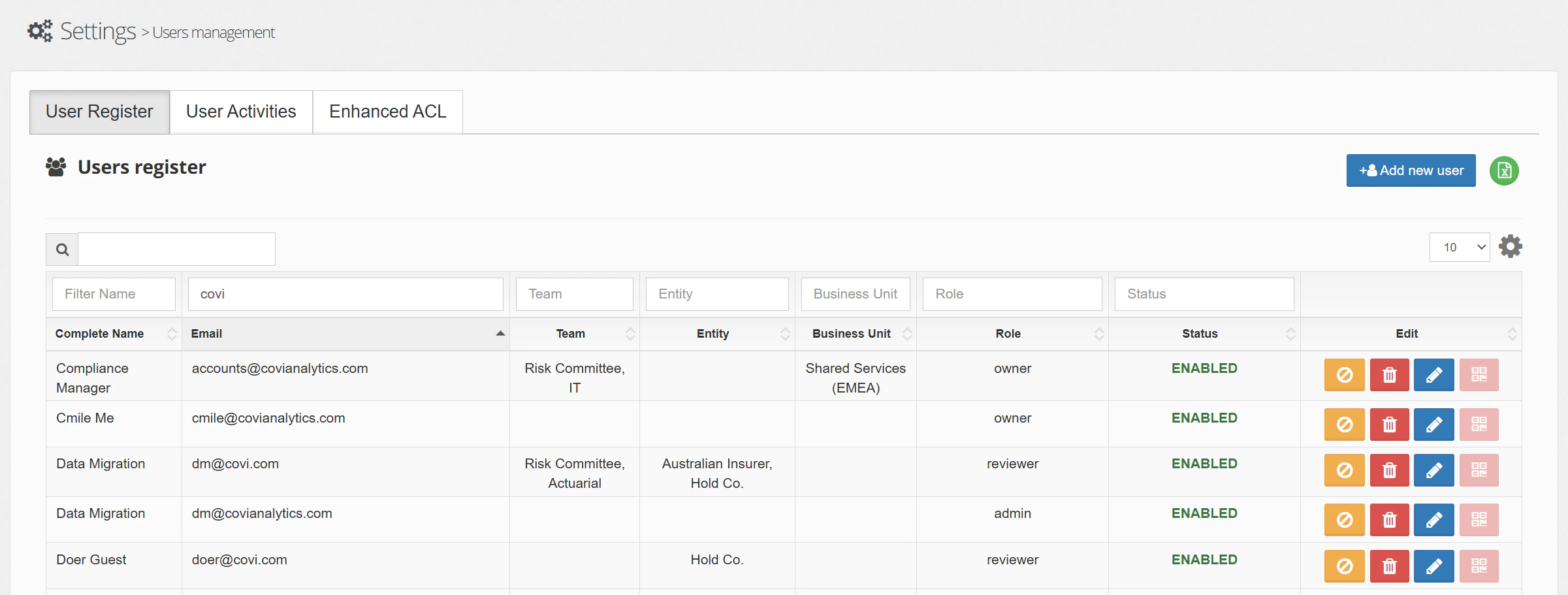
Tips & Tricks
Enhanced ACL changes take effect immediately for all users of the affected role type. Coordinate with your team before making changes, particularly during active assessment periods.