

Overview
The Risk Incidents Log gives you a centralised view of every risk incident reported across your organisation. You can filter by business unit, team, or entity, search for specific incidents, and quickly assess severity through scoring and breach indicators. Use this page to stay on top of incident trends, assign ownership, and ensure timely resolution.How to use it
Viewing incidents
The log displays all recorded incidents in a sortable table. Each row represents a single incident and includes the following columns: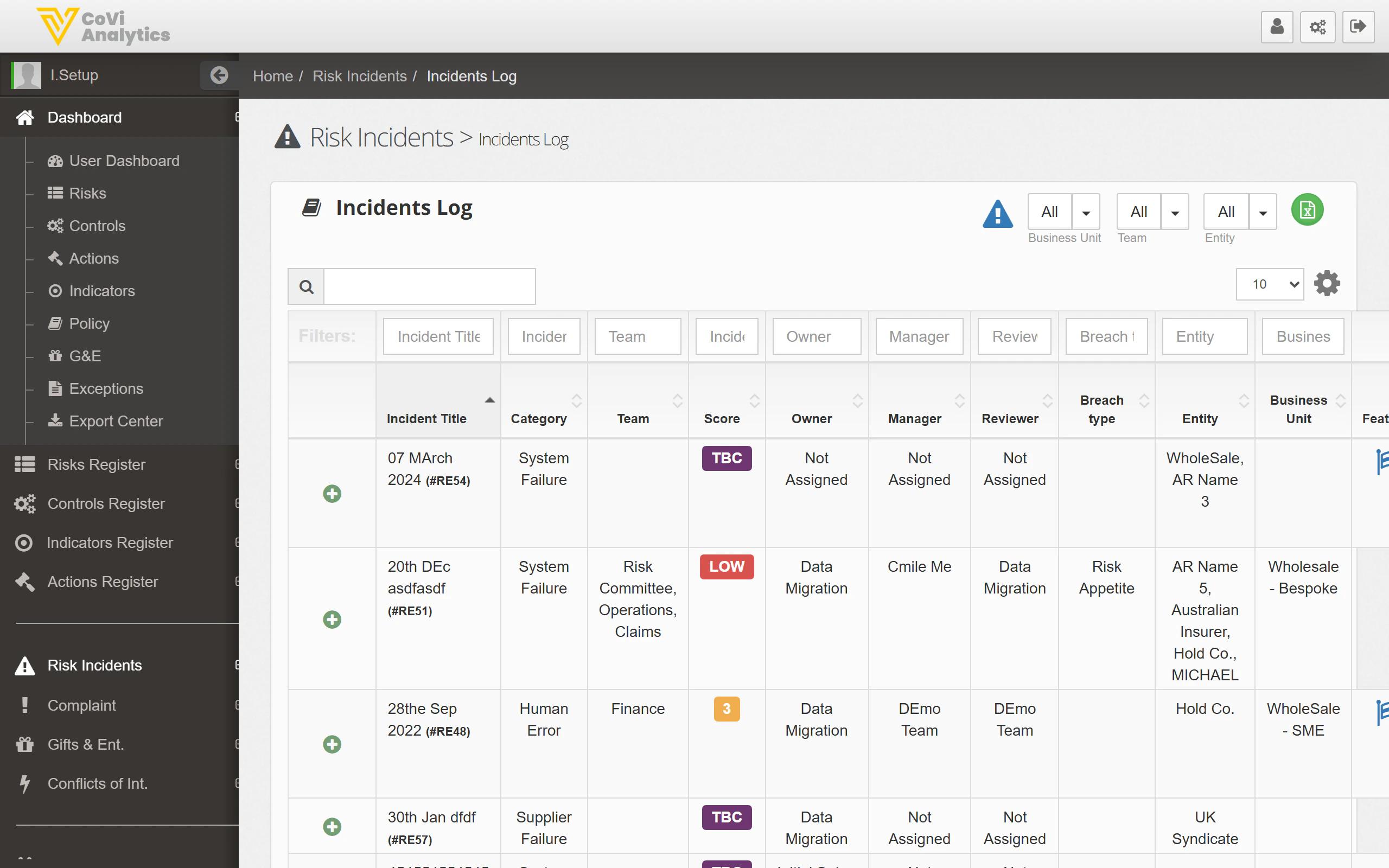
- Incident Title — The name of the incident, followed by its unique reference code (e.g. “07 March 2024 (RE54)”).
- Category — The classification of the incident, such as System Failure, Human Error, or Supplier Failure.
- Team — The team responsible for managing the incident.
- Score — The assessed severity score. This may show a numeric value, LOW, or TBC (to be confirmed) if scoring is still pending.
- Owner — The person accountable for resolving the incident.
- Manager — The line manager overseeing the incident response.
- Reviewer — The individual responsible for reviewing and signing off on the incident.
- Breach Type — Indicates whether the incident breached your organisation’s Risk Appetite thresholds.
- Entity — The legal entity affected by the incident.
- Business Unit — The business unit where the incident occurred.
Filtering and searching
Use the Business Unit, Team, and Entity dropdowns at the top of the page to narrow the list to a specific part of your organisation. The filter row beneath the column headers lets you apply column-level filters for more precise results. Type a keyword or reference number into the search box to locate a specific incident quickly.Adding a new incident
Click the green + button to open the incident creation form. You will be prompted to enter the incident details, assign an owner, and select the appropriate category and entity.Pagination
Use the pagination controls at the bottom of the table to navigate through large sets of incidents. You can also adjust how many rows are displayed per page.Tips & Tricks
You can sort by any column by clicking the column header. This is useful for grouping incidents by category or identifying which teams have the most open items.