

Overview
The Control Card is the detailed view of a single control. This is where you review the control’s current status, update its assessment, manage linked risks and actions, record evidence, and view the full audit trail of changes. To open a Control Card, click on any control title from the Control Register or the Controls Dashboard. You can also navigate from the sidebar via Controls Register > Control Card and use the Load Control panel to select a specific control.Basic Information
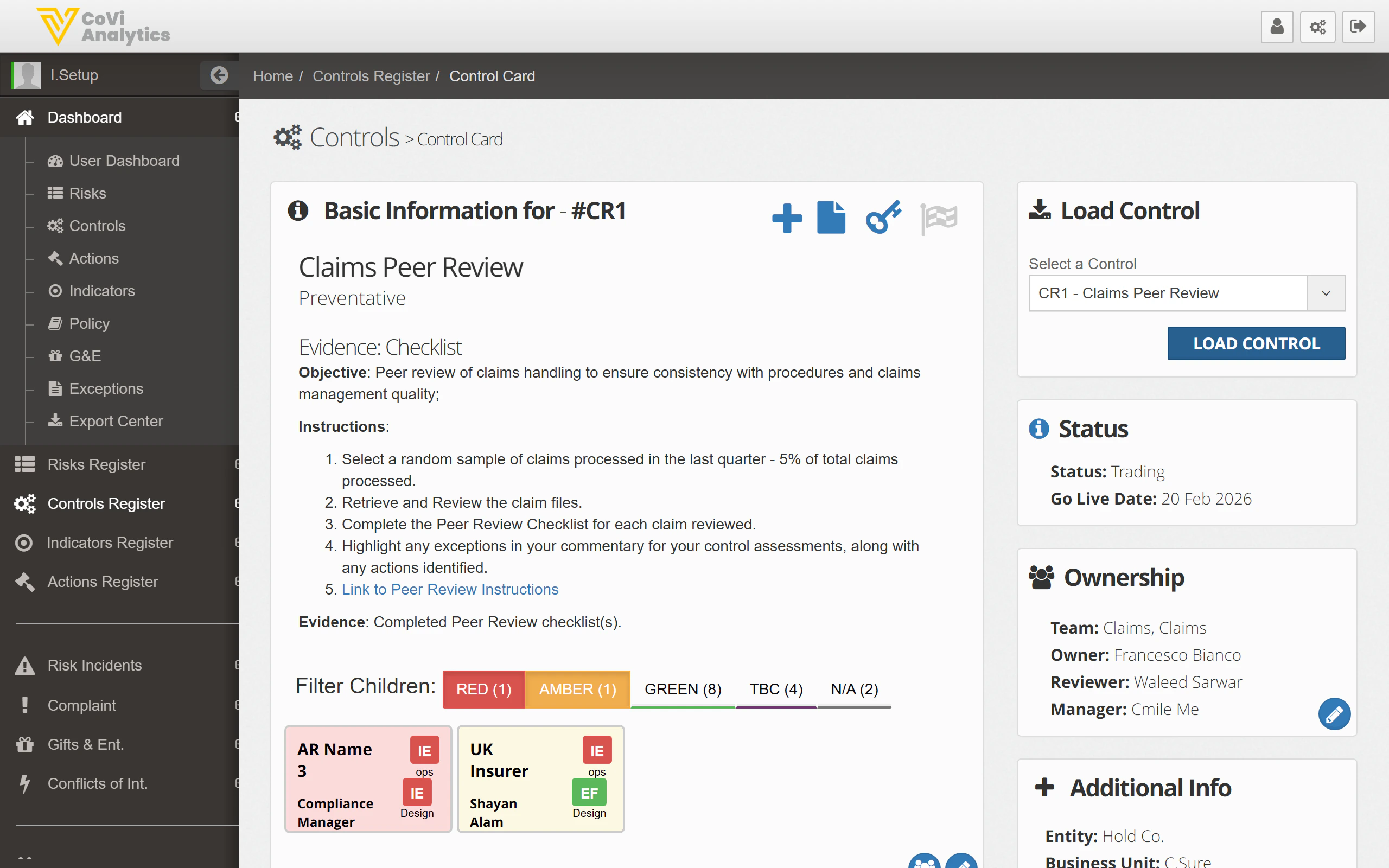
- Reference and title — the control’s unique ID (e.g., #CR1) and name
- Type — the control type (e.g., Preventative, Detective, Corrective)
- Objective — what the control is designed to achieve
- Instructions — the step-by-step process for performing the control
- Evidence — what documentation demonstrates the control is operating
- Load Control — select and load a different control from the dropdown
- Status — current status and go-live date
- Ownership — the team, owner, reviewer, and manager assigned to this control
- Additional Info — entity, business unit, and reference number
- Review Info — operational frequency, testing frequency, last reviewed date, and upcoming review deadlines
Child Controls
If this control has child controls, they appear as coloured cards beneath the instructions. Use the Filter Children buttons (Red, Amber, Green, TBC, N/A) to narrow down which child controls are shown. Each child card shows the owner and entity, and you can click on a child to open its own Control Card.Control Effectiveness
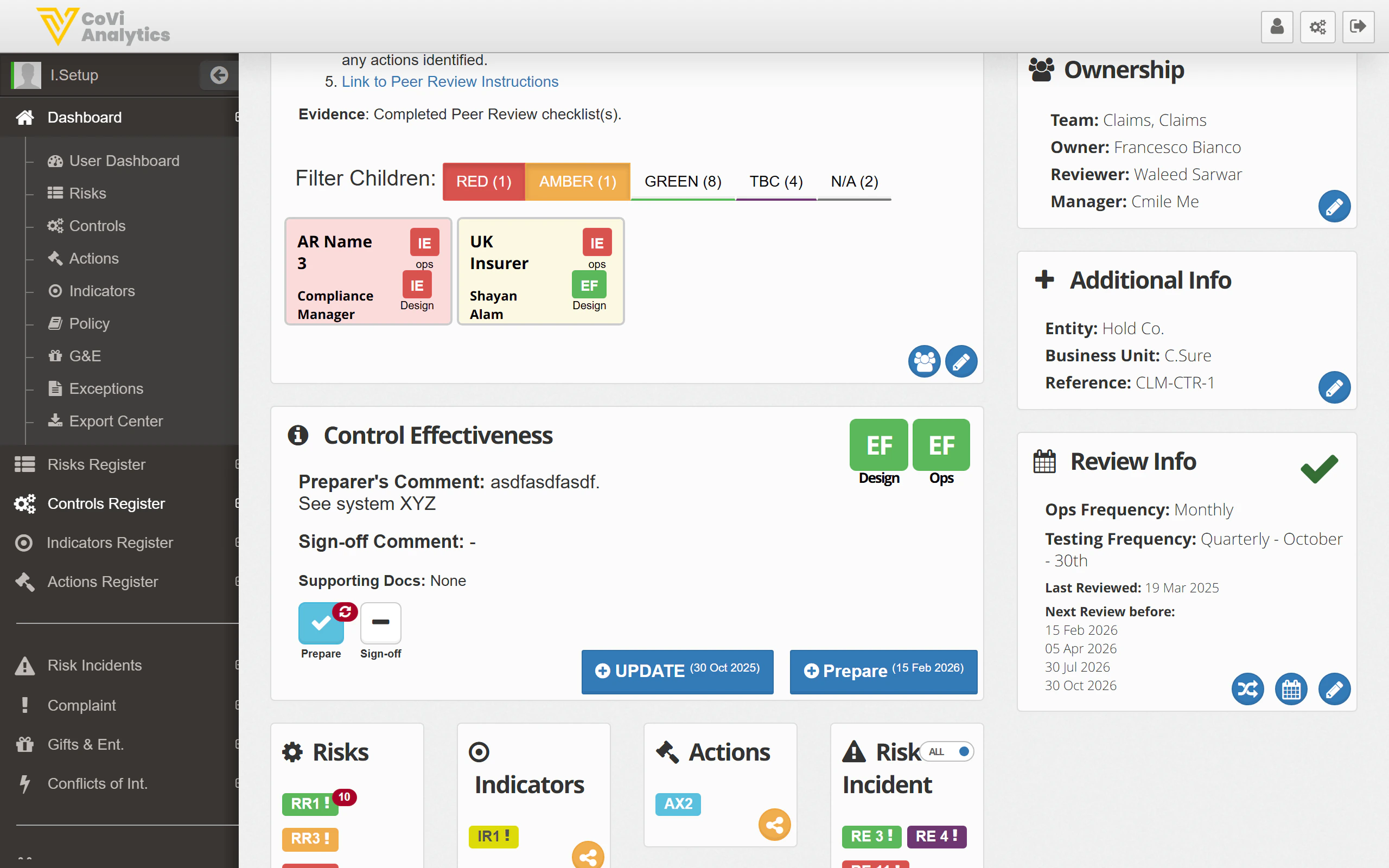
- Design and Ops RAG ratings — the coloured squares (EF) show the current Design Effectiveness and Operational Effectiveness ratings
- Preparer’s Comment — the control owner records their assessment of how the control is performing
- Sign-off Comment — the reviewer adds their sign-off after reviewing the assessment
- Supporting Docs — attach evidence files to support the assessment
Assessment workflow
Use the buttons at the bottom of this section to progress the assessment:- Prepare — ticked when the preparer has completed their assessment
- Sign-off — ticked when the reviewer has signed off
- UPDATE — saves changes and records the assessment date
- Prepare (green button) — resets the control for the next assessment cycle
Linked Items
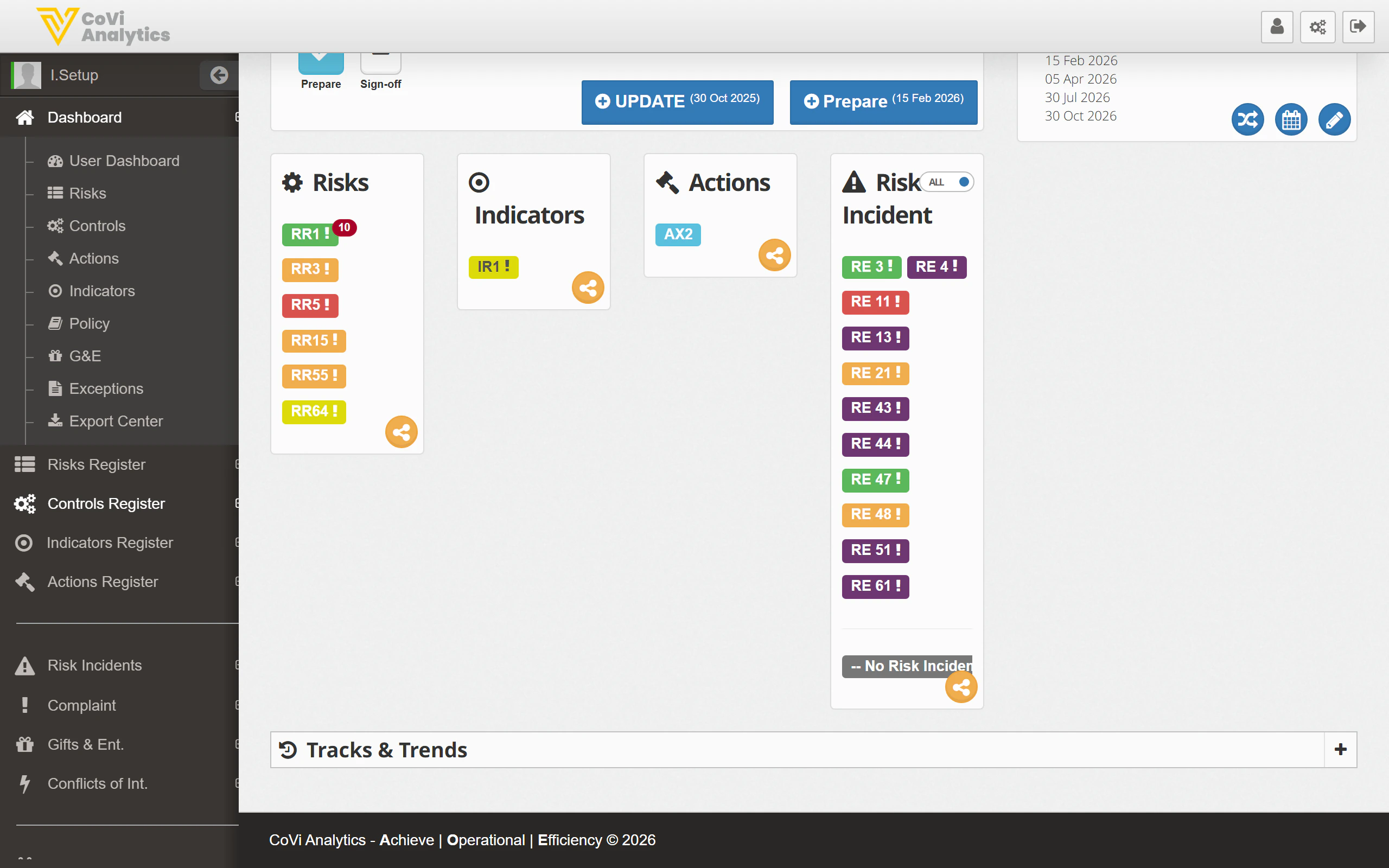
- Risks — the risks this control mitigates, shown as coloured badges (e.g., RR1, RR3). Click any badge to open that risk’s record. Use the link icon to add or remove risk associations.
- Indicators — key risk indicators linked to this control (e.g., IR1). These help you monitor whether the control is working as expected.
- Actions — any open actions related to the control (e.g., AX2). Actions track follow-up work such as remediation or improvements.
- Risk Incidents — incidents where this control was relevant (e.g., RE 3, RE 4). The toggle at the top lets you switch between showing all incidents or just unlinked ones.
Tracks & Trends
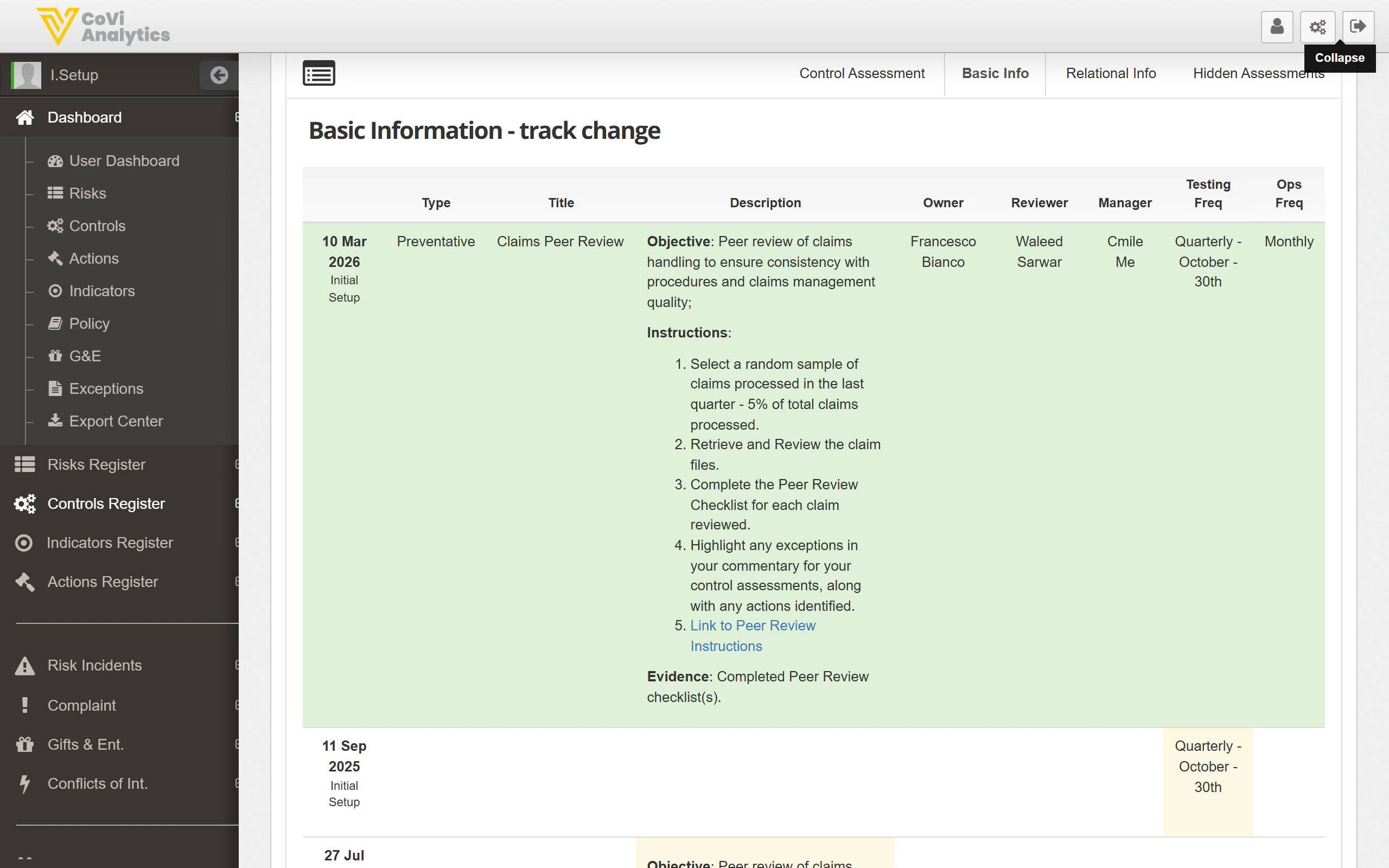
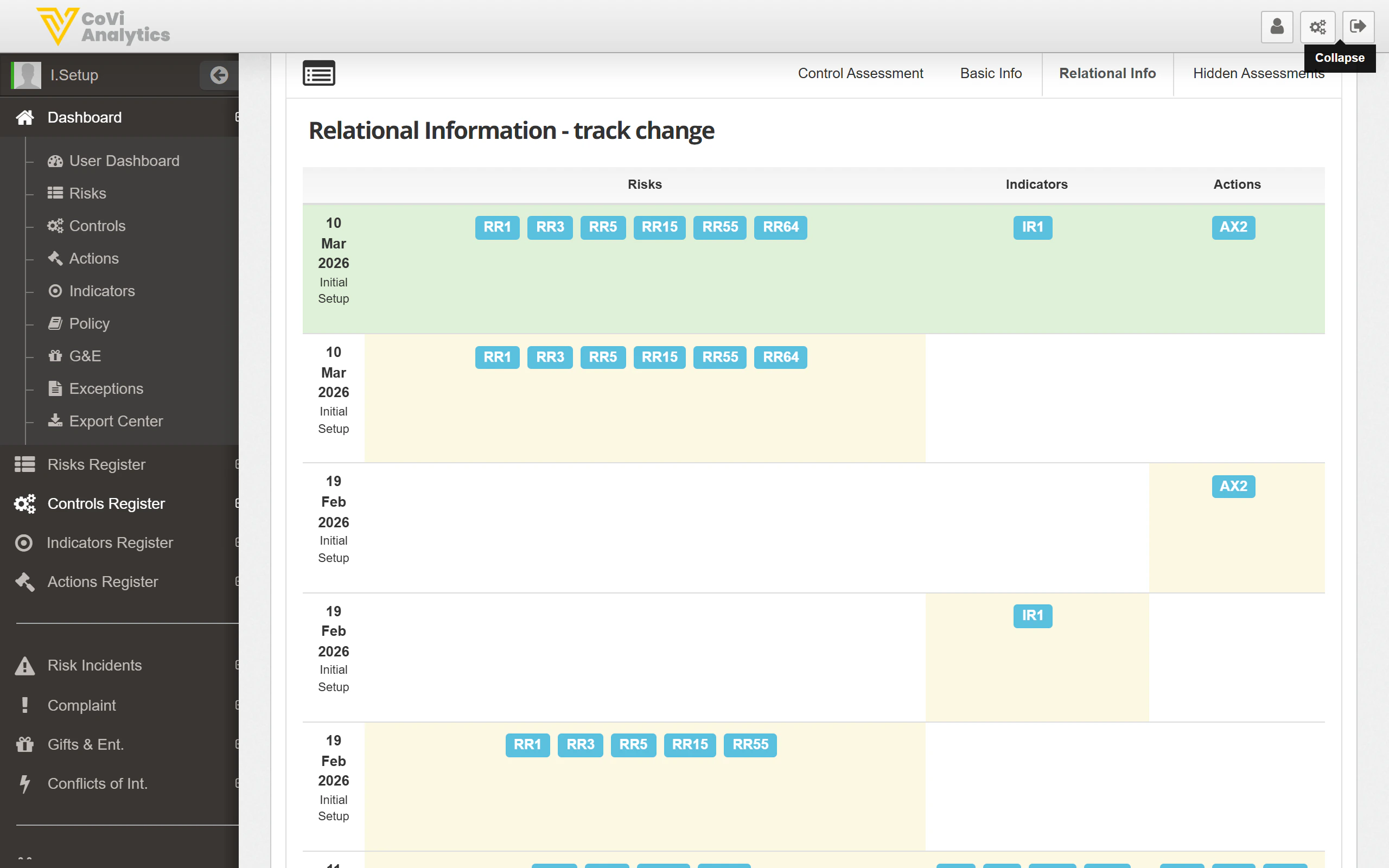
At the very bottom of the Control Card, the Tracks & Trends section provides a full audit trail. Click the + icon to expand it. It contains three tabs:Control Assessment
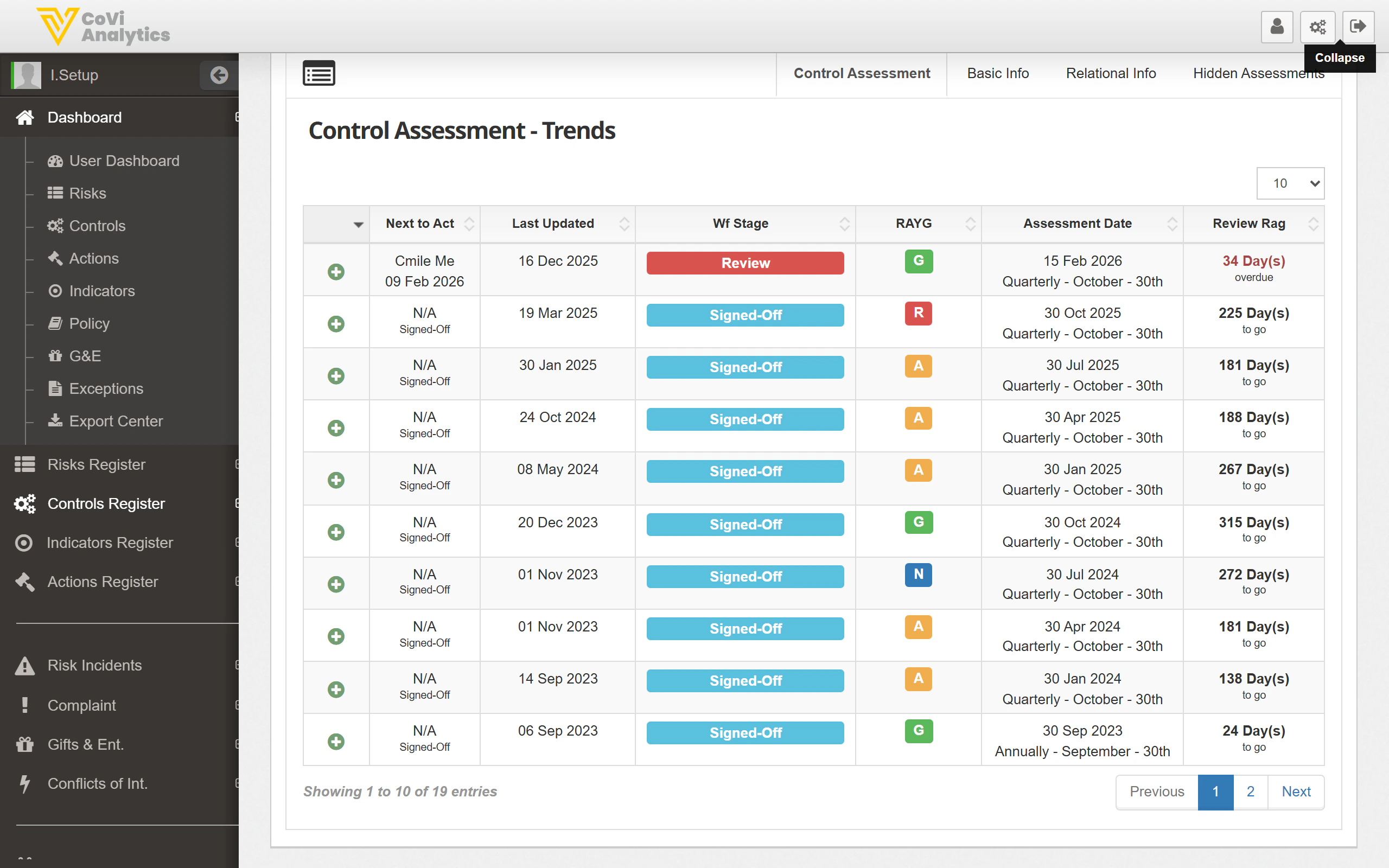
Basic Info
Relational Info
Tips & Tricks
The child controls filter buttons (Red, Amber, Green) refer to the child’s own RAG rating, not the parent’s. This helps you quickly spot which child controls need attention.