

Overview
The Policy List is a comprehensive register of all policies held within CORE. Use it to find specific policies, review their current status, and navigate directly to any policy record for editing or review. While the Policy Dashboard gives you a summary view, the list is where you go when you need to work with individual records.How to use it
Navigating to the Policy List
From the sidebar, select Policies and then List. The full register loads in the main content area.Browsing and searching
The list displays all policies in a table format. You can:- Search — use the search box to filter policies by title, owner, or keyword. Results update as you type.
- Sort — click any column header to sort ascending or descending.
- Filter — use the available dropdown filters (Business Unit, Team, Entity) to narrow the list to a specific part of your organisation.
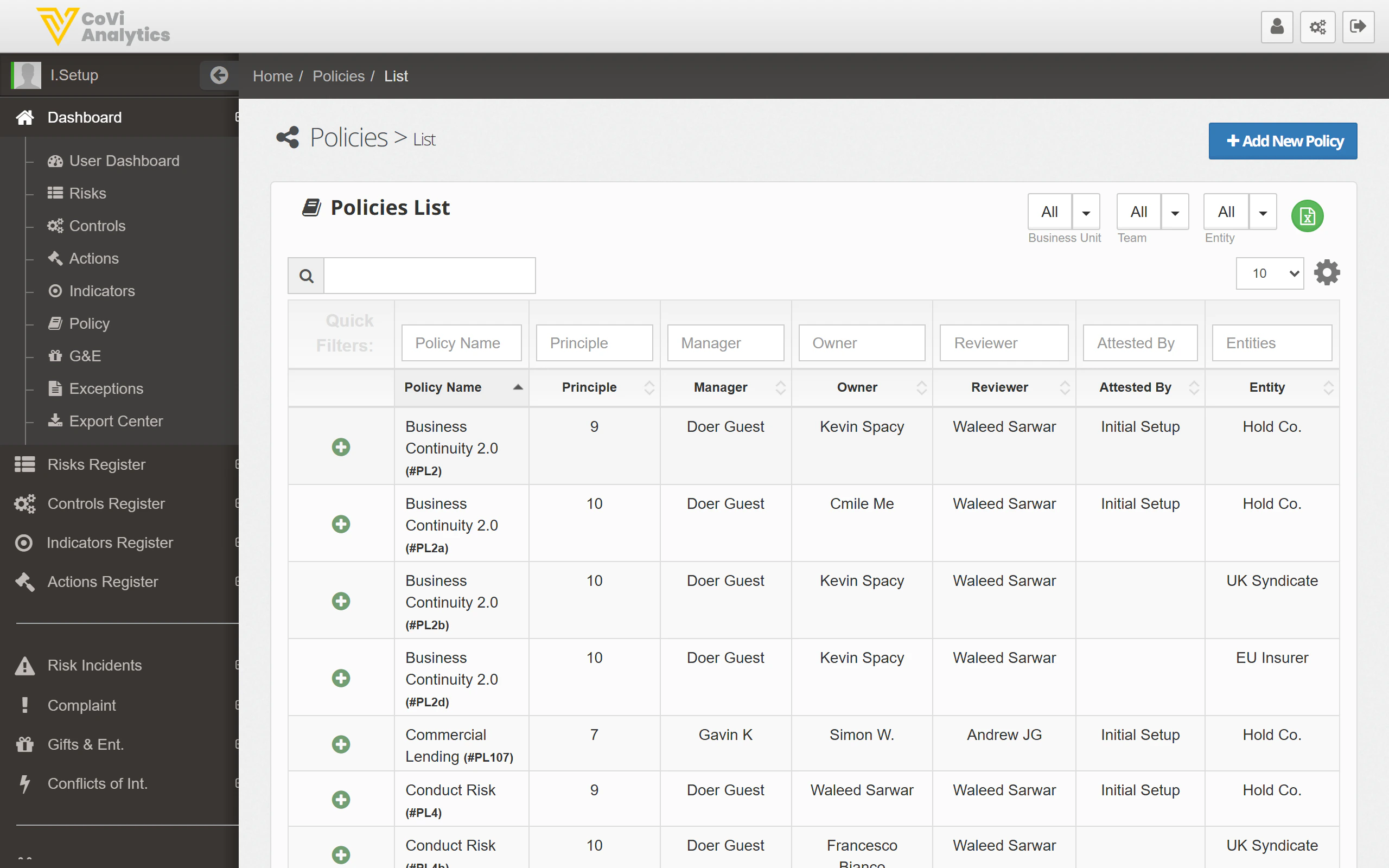
Understanding the table columns
The register follows a standard table pattern used across CORE. Typical columns include:Opening a policy record
Click any row to open the full policy record. From there you can:- Review the policy content and attachments.
- Update the review status.
- Reassign ownership.
- View the change history.
Pagination
If your organisation has a large number of policies, the list is paginated. Use the controls at the bottom of the table to move between pages or adjust how many records display per page.Tips & Tricks
The Policy List and the Policy Dashboard draw from the same data. Changes you make to a policy record here are immediately reflected in the dashboard’s status tiles and graph.