Overview
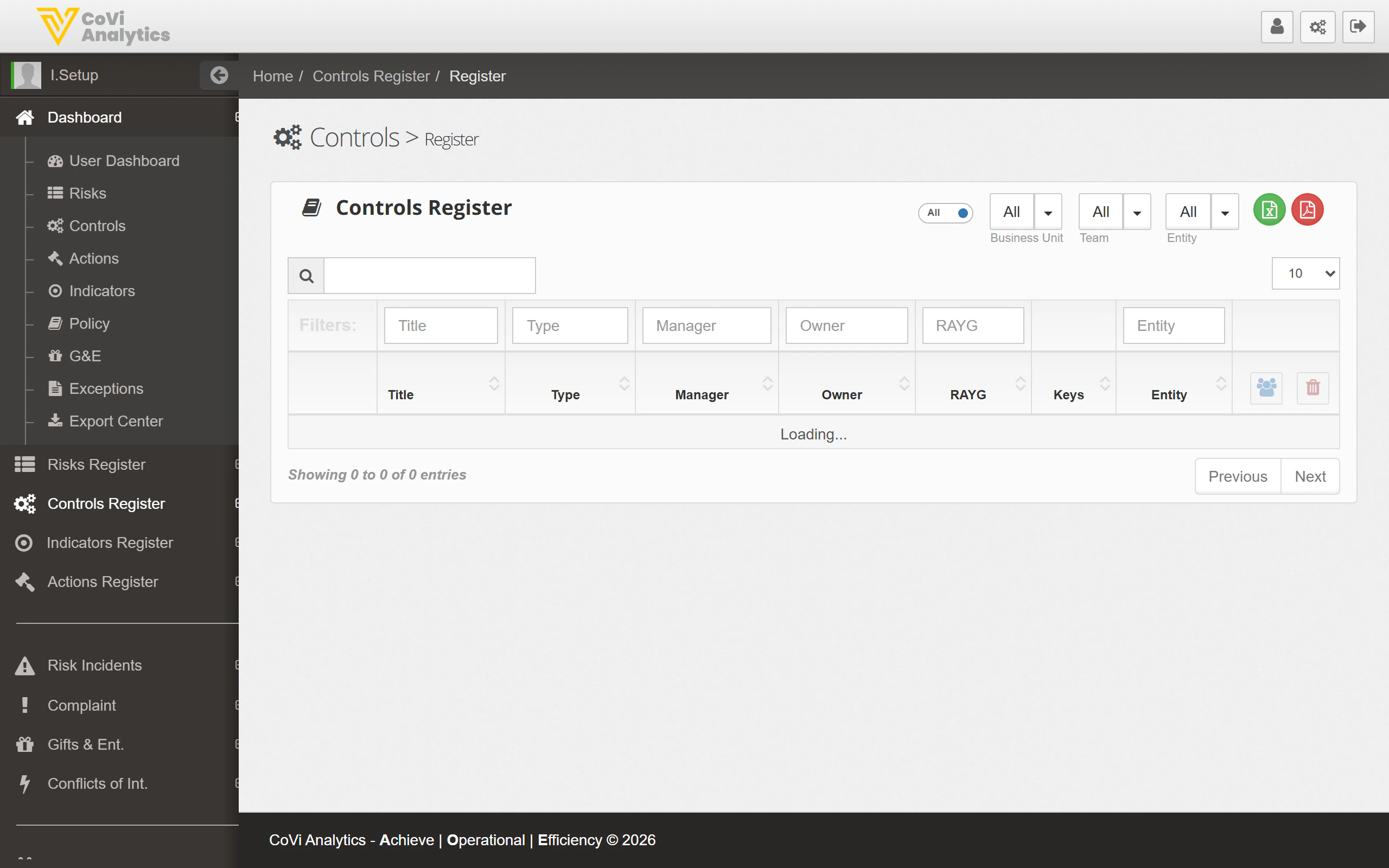
The Control Register is the master list of every control in your organisation. Use it to find specific controls, review their status, and navigate to individual control records for editing.
From the sidebar, expand Controls Register and click Register.
How to use it
Searching and filtering
- Search box — type any keyword to search across all control fields
- Column filters — use the filter row beneath the column headers to narrow by Title, Type, Manager, Owner, RAYG rating, or Entity
- Dropdown filters — the dropdowns above the table let you filter by Business Unit, Team, and Entity before the table loads
Understanding the columns
The icons in the top-right corner of the register give you quick access to:
- Add new control (green plus icon) — creates a new control record
- Export (download icon) — export the current view to a spreadsheet
- Print — generate a printable version of the register
Use the Previous / Next buttons and the rows-per-page dropdown (10, 25, 50, 100) to navigate through large lists.
Tips & Tricks
Combine column filters with the global search for precise results. For example, filter by Entity first, then search for a keyword in the control title.
Click any column header to sort the register by that field. Click again to reverse the sort order.
If you need to review all overdue controls, it may be quicker to use the Controls Dashboard and click the Overdue tile — it pre-filters for you.