

Overview
The Risks Dashboard gives you a consolidated picture of your organisation’s risk landscape. Use it to track total risk counts, spot overdue reviews, explore how risks are distributed across owners and entities, and visualise risk concentrations on a heat map or radar chart — all without opening individual risk records. You can reach this page by clicking Risks in the sidebar.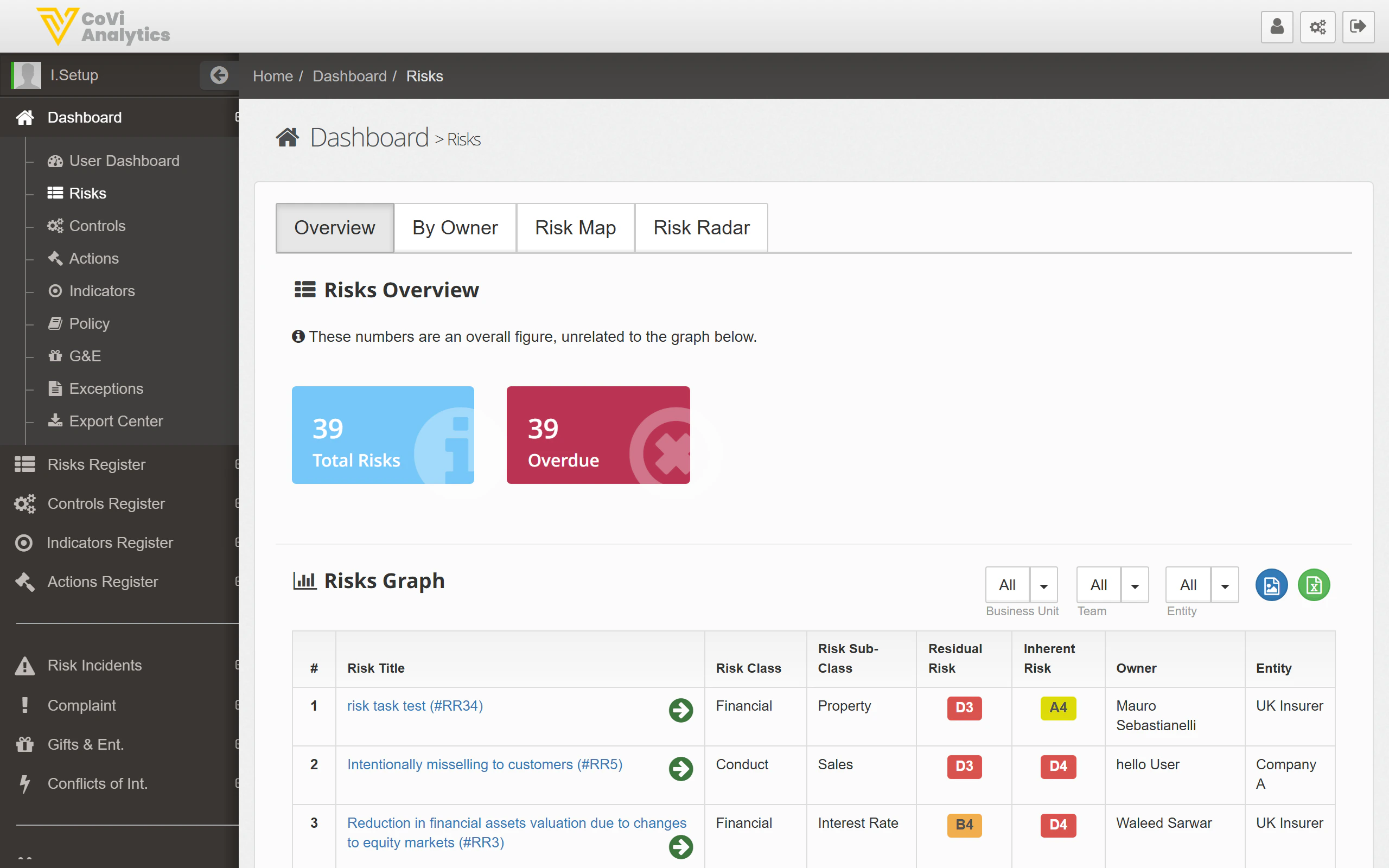
How to use it
Status tiles
The tiles at the top give you an at-a-glance summary:- Total Risks — the total number of risks recorded across all entities (e.g., 39)
- Overdue — risks past their review date that need immediate attention
Dashboard tabs
Use the tabs to change how risk data is presented:- Overview — the default summary with status tiles, a trend graph, and a detail table
- By Owner — see how risks are distributed across risk owners, useful for identifying concentration or workload imbalances
- Risk Map — a heat map plotting risks by likelihood and impact, so you can see where your highest-rated risks cluster
- Risk Radar — a radar chart showing risk distribution across risk classes, giving you a quick visual of where your organisation carries the most exposure
Risks Graph
The bar chart shows risk status over time. Use the dropdown filters above the graph to narrow by Risk Class, Business Unit, Team, or Entity. This is especially useful when preparing reports for a specific committee or legal entity.Risk detail table
The table at the bottom lists individual risks with key information:
Click any row to navigate to that risk’s full record.