

Overview
The Risk Card is the detailed view of a single risk. This is where you review the risk’s current scoring, update its assessment, manage linked controls and actions, and view the full audit trail of changes. It follows the same pattern as the Control Card, giving you a consistent experience across your risk and control framework. To open a Risk Card, click on any risk title from the Risk Register or the Risks Dashboard. You can also navigate from the sidebar via Risks > Risk Card and use the Load Risk panel to select a specific risk.Basic Information
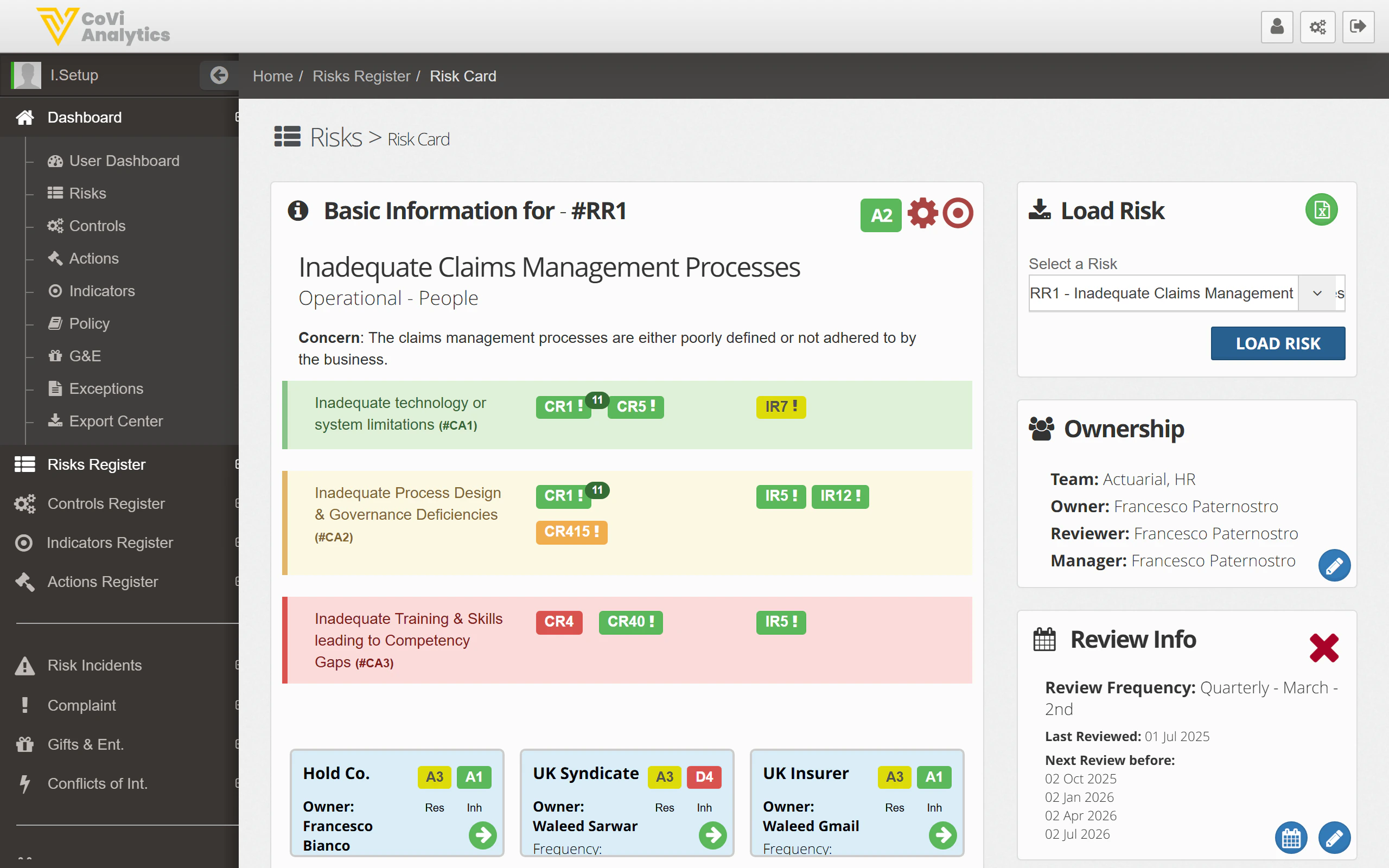
- Reference and title — the risk’s unique ID (e.g., #RR1) and name
- Risk Class — the top-level risk category (e.g., Financial, Operational)
- Risk Sub-Class — the more specific classification within the class
- Concern Statement — a narrative description of what could go wrong and why it matters
- Load Risk — select and load a different risk from the dropdown
- Status — current status and go-live date
- Ownership — the team, owner, reviewer, and manager assigned to this risk
- Additional Info — entity, business unit, and reference number
Risk Assessment
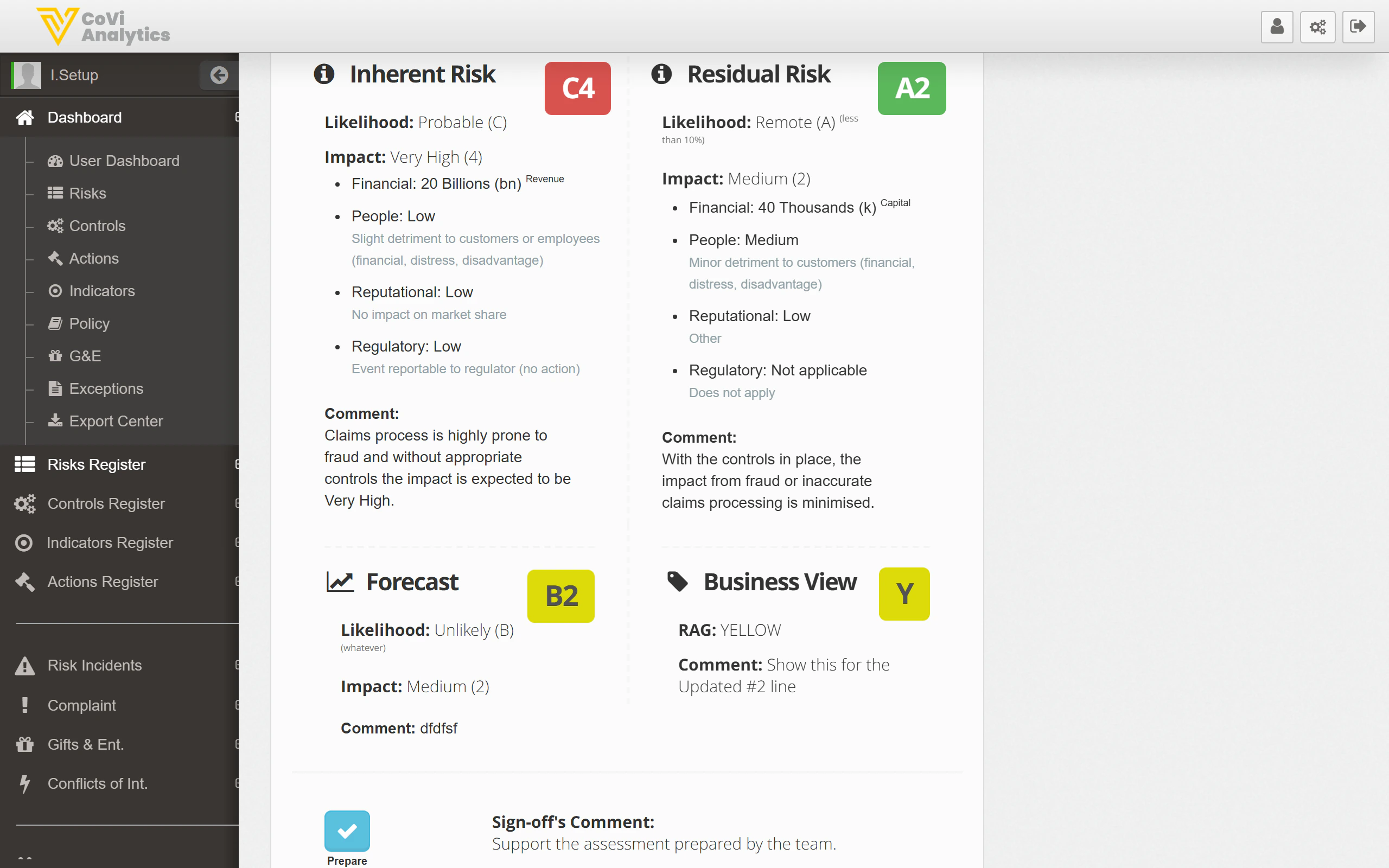
- Inherent Risk — the risk level before any controls are applied
- Residual Risk — the risk level after taking your current controls into account
- Forecast Risk — where you expect the risk to be in the next assessment period
- Financial — monetary loss exposure
- People — health, safety, or workforce impact
- Brand — reputational damage
- Regulatory — compliance or regulatory action
Assessment workflow
Use the assessment buttons to progress through the review cycle:- Prepare — the risk owner completes their assessment with a supporting comment
- Sign-off — the reviewer validates the assessment
- UPDATE — saves changes and records the assessment date
Linked Items
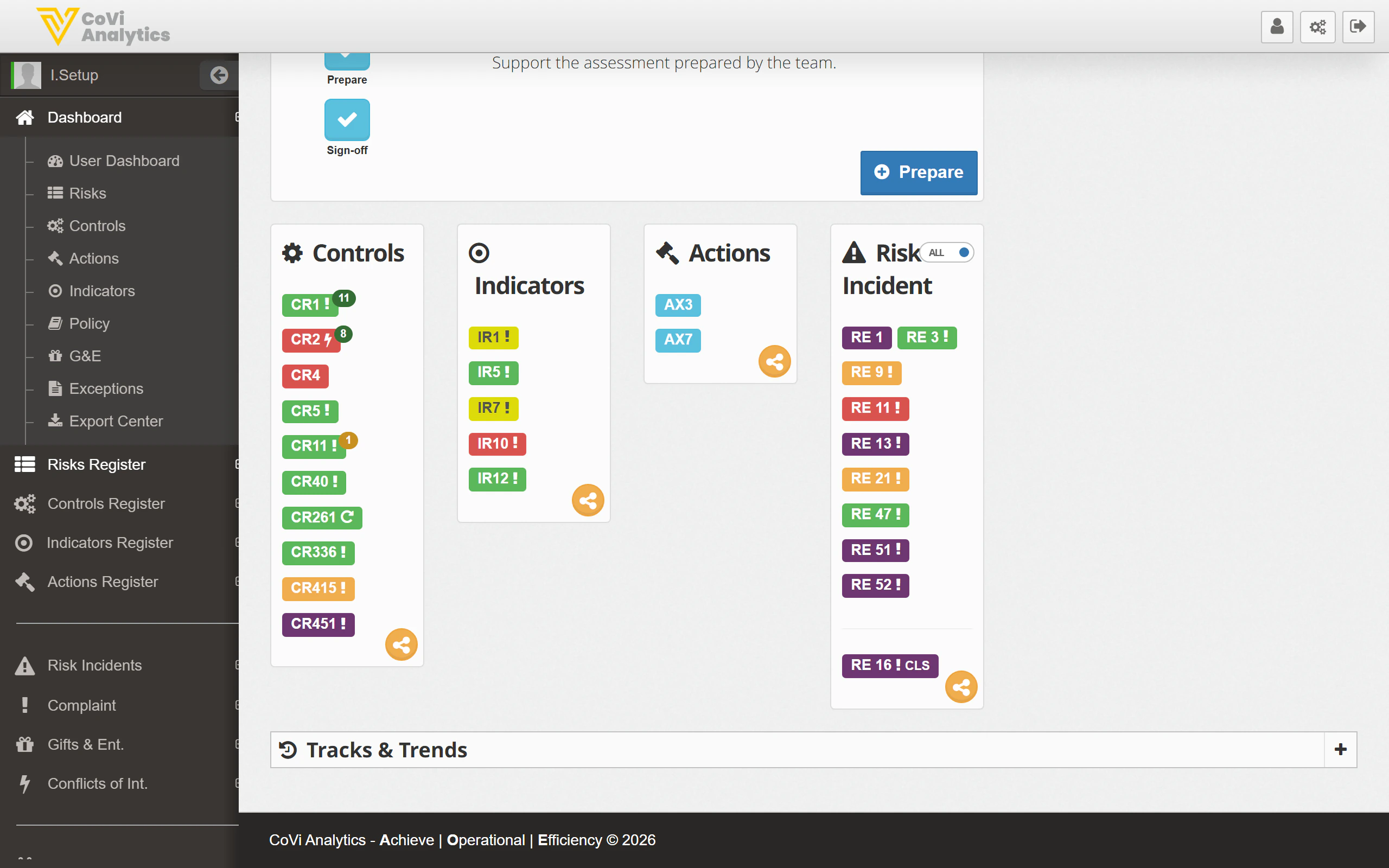
- Controls — the controls that mitigate this risk, shown as coloured badges (e.g., CR1, CR358). Click any badge to open that control’s Control Card. Use the link icon to add or remove control associations.
- Actions — open actions related to the risk (e.g., remediation tasks or improvement initiatives). See Actions for more detail.
- Indicators — key risk indicators that help you monitor whether this risk is trending in the right direction. See Indicators for more detail.
- Risk Incidents — incidents where this risk materialised. Use these to validate your scoring and to evidence the risk for auditors.
Tracks & Trends
Risk Assessment
A complete log of every assessment cycle for this risk, showing:- When each assessment was performed
- Who prepared and signed off
- The inherent, residual, and forecast scores at each point in time
- How long the review cycle took
Basic Info
A timestamped record of every change to the risk’s core fields — title, class, sub-class, concern statement, ownership, and status. Use this to understand how a risk has evolved or to audit configuration changes.Relational Info
A history of how the risk’s relationships have changed over time — which controls, actions, indicators, and incidents were linked or unlinked and when. Each row shows the full set of linked items at that point in time.Tips & Tricks
The linked items section mirrors the layout on the Control Card. Linking a control to a risk here has the same effect as linking a risk to a control from the Control Card — the relationship is bidirectional.