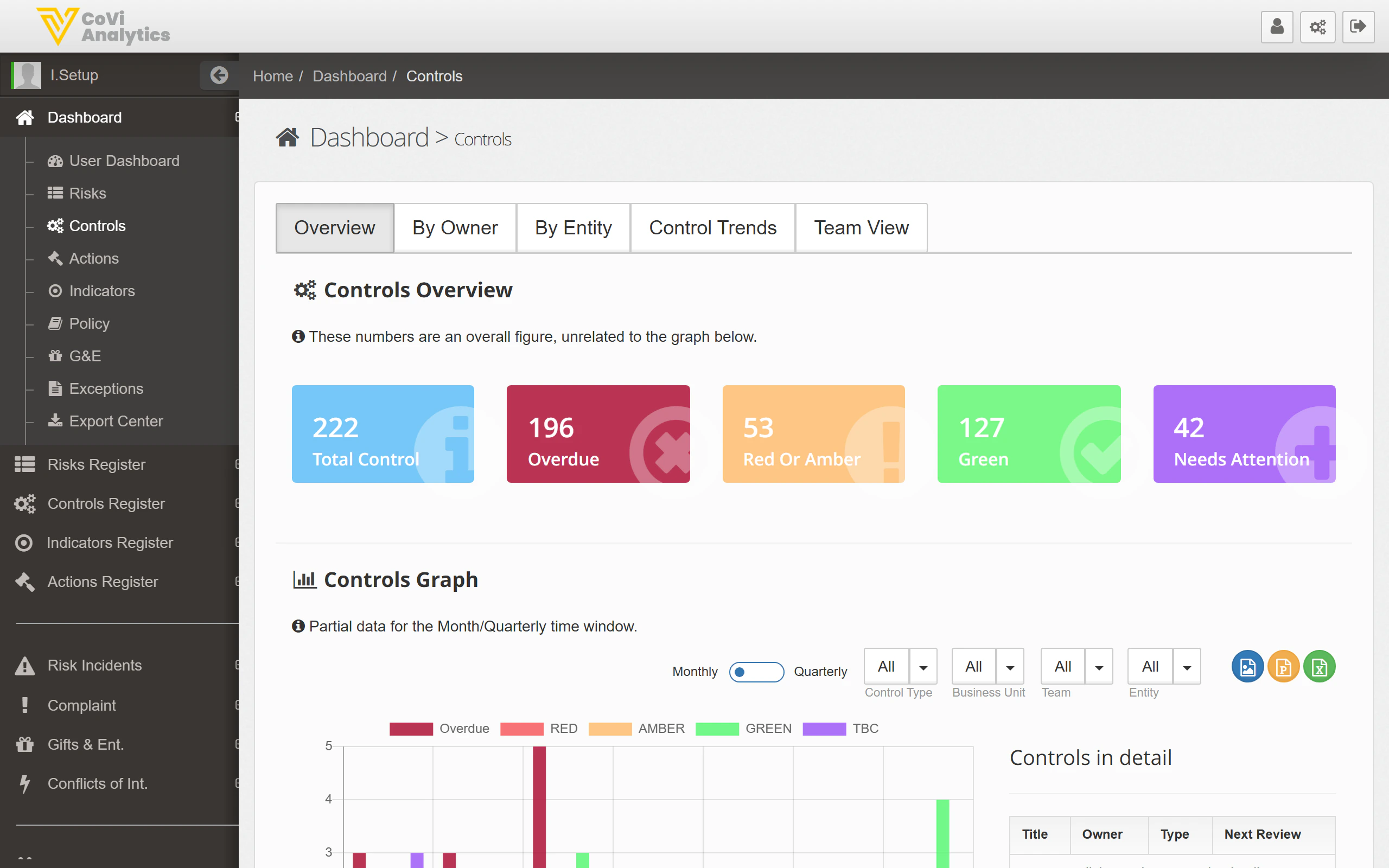
Overview
The Controls Dashboard gives you a snapshot of how your controls are performing across the organisation. Use it to quickly identify overdue controls, spot RAG status trends, and understand which areas need attention — without having to open individual control records.
You can reach this page by clicking Controls in the sidebar.
How to use it
Status tiles
The coloured tiles at the top show key metrics at a glance:
- Total Controls — the total number of controls across all entities
- Overdue — controls past their review date that need immediate attention
- Red or Amber — controls rated as underperforming or at risk
- Green — controls operating effectively
- Needs Attention — controls flagged for follow-up
Click any tile to filter the view below to just those controls.
Dashboard tabs
Use the tabs to change how controls are grouped:
- Overview — the default summary with status tiles and a trend graph
- By Owner — see how controls are distributed across owners, useful for workload balancing
- By Entity — break down control status by legal entity or business unit
- Control Trends — view how control ratings have changed over time
- Team View — see control performance grouped by team
Controls Graph
The bar chart shows control status over time. Use the toggle to switch between Monthly and Quarterly views. The dropdown filters let you narrow by Control Type, Business Unit, Team, and Entity.
Controls in detail
The table at the bottom lists individual controls with their Title, Owner, Type, and Next Review date. Click any row to open that control’s full record.
Tips & Tricks
Start your day on the Overview tab — if the Overdue count is climbing, switch to By Owner to see who needs support.
Use the Control Trends tab before board reporting to show improvement over time. The trend graph makes a strong visual for committee packs.
The graph filters remember your selection within your session. If the graph looks unexpected, check that the filters haven’t been narrowed from a previous view.